
Table of Contents
Today I will share with you about the error SageMaker loading screen is taking a long time. If you receive an error message like this, maybe this article will help you.
“The loading screen is taking a long time. Would you like to clear the workspace or keep waiting?”
Error SageMaker loading screen is taking a long time
I want to talk a little about the environment that SageMaker is running in this article. Because the system I work on requires quite high security, it only allows all resources to be located in private subnets.
In short, SageMaker is running in VPC only mode. You can read more through this article Connect Studio notebooks in a VPC to external resources – Amazon SageMaker
Report about the error SageMaker loading screen
I have received reports from ML team that they are unable to create jobs in SageMaker studio. When they start the studio they get the following message on the screen.
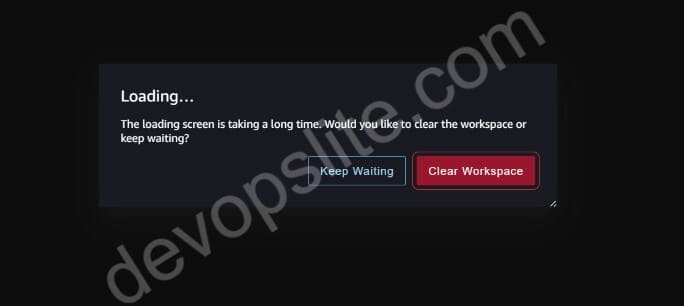
Next, once they are in SageMaker studio, they have to wait about 5-10 minutes before they can move between working folders.
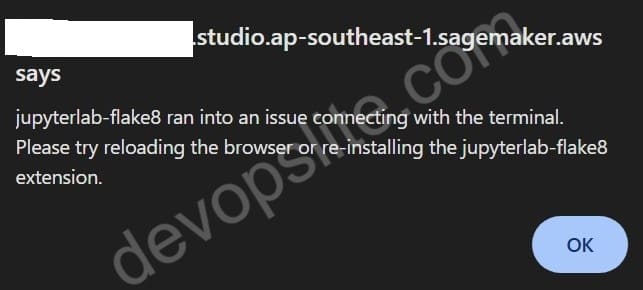
During that process, they also receive 2 other messages as below.
“jupyterlab-flake8 ran into an issue connecting with the terminal. Please try reloading the browser or re-installing the jupyterlab-flake8 extension.”
“Failed to start kernelFailed to launch app [sagemaker-data-science-ml-m5-large-aa8b2a7337cd76e79983efad235d]. SageMaker Studio is unable to reach SageMaker endpoint. Please ensure your VPC has connectivity to SageMaker via Internet or VPC Endpoint. If you are using VPC Endpoints, please ensure Security Groups allows traffic between Studio and VPC endpoints. Learn more about SageMaker Studio VpcOnly mode – https://docs.aws.amazon.com/sagemaker/latest/dg/studio-notebooks-and-internet-access.html (Context: RequestId: 7f0c713e-7c94-4a27-9e86-4732915857a1, TimeStamp: 1724914996.4705403, Date: Thu Aug 29 07:03:16 2024)”
First judgment cause of SageMaker loading screen issue
When I checked the system events, I saw that a member of our team was receiving a request from a higher-up to delete an entire VPC.
He was deleting what had been created previously through the CloudFormation stack.
This caused some errors because the SageMaker was manually created by the ML team a long time ago, it had not been deleted by the CloudFormation stack.
But this caused SageMaker to crash because some of the resources it was using were deleted.
Fix SageMaker loading screen is taking a long time error
After checking, I confirmed that the VPC and subnets still exist (as CloudFormation does not allow deleting it while there are still attached resources).
But the NAT Gateway has been deleted, along with possibly the routes in the Route Table.
I had to re-read the AWS documentation to connect SageMaker in VPC only mode, I have provided the link above.
Accordingly, I did the following 3 things to fix the SageMaker loading screen error.
Check NAT Gateway and Route Tables
Because SageMaker is running in VPC only mode, it means that it is located in private subnets.
Without a NAT Gateway, SageMaker cannot connect to the internet and download the necessary models or installation packages.
Make sure the NAT Gateway is created in the public subnet.

Then make sure you have added the route 0.0.0.0/0 with the Target being the NAT Gateway you created.
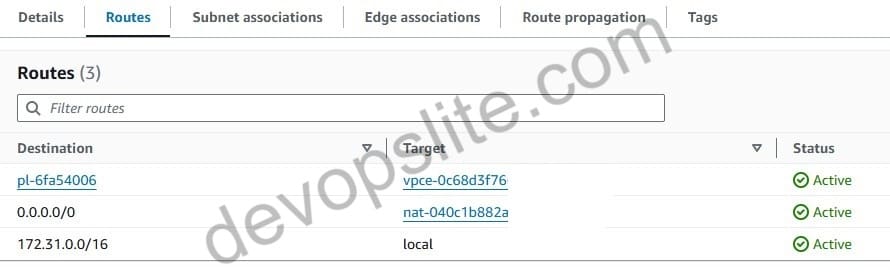
Here, I have 3 private subnets corresponding to 1 zone of VPC. So, I also create 3 separate NAT Gateways and 3 corresponding Route Tables.
Depending on your VPC configuration it may be similar and may be different from mine, but the important thing is to make sure your private subnets are set up to route out to the internet through a NAT Gateway.
Create the necessary Security Groups
Once you have checked your VPC, private subnets, NAT Gateways and Route Tables.
The next thing you need to do is create the necessary Security Groups for SageMaker.
Security Group for SageMaker domain
First, you check and create Security Group (I abbreviate SG for Security Group) for SageMaker domain if it does not exist or has been deleted.
With Inbound rules as below.
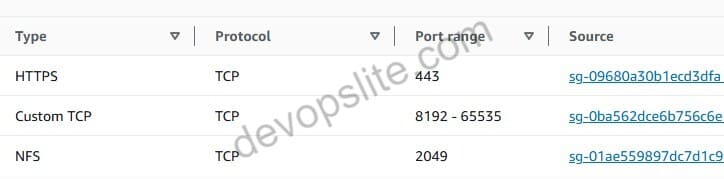
In there:
- Port 443: You allow access from the Security Group of the VPC Endpoints.
- Port range 8192-65535: You allow access from the Security Group ID itself for this SageMaker domain. For example, in the picture, SG for SageMaker domain has ID
sg-0ba562dce6b756c6e. And it allows itself to access the port range. - Port 2049: You allow access from Security Group for EFS inbound, we will create this SG later.
As for this SG Outbound rule, you can leave it as All traffic.
Security Groups for VPC Endpoints
For SG for VPC Endpoints, you only need 1 single rule for Inbound.
That is to allow access to port 443 from SG of SageMaker domain. SG has ID sg-0ba562dce6b756c6e that I mentioned above.
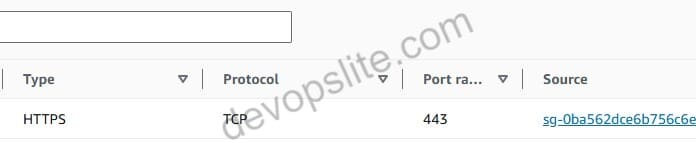
As for Outbound rule, you also leave All Traffic similar.
Security Group for EFS volume
For SG for EFS volumes, this depends on whether your SageMaker uses EFS or not. If not, you can skip this.
But I find that most people using SageMaker will use EFS and S3 in addition.
You will need to create 2 more SGs as follows.
The first SG you can name is sg-outbound-for-efs.
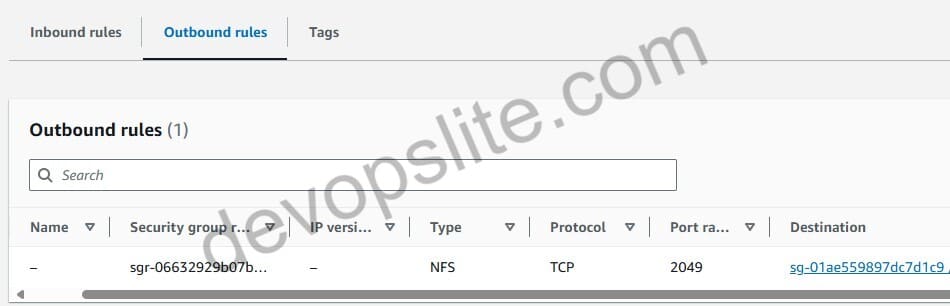
This SG will not have an Inbound rule, which means you leave the Inbound rule blank.
And for the Outbound rule, you only set up a single rule to allow access to sg-inbound-for-efs.
The second SG created for the EFS volume can be named sg-inbound-for-efs.
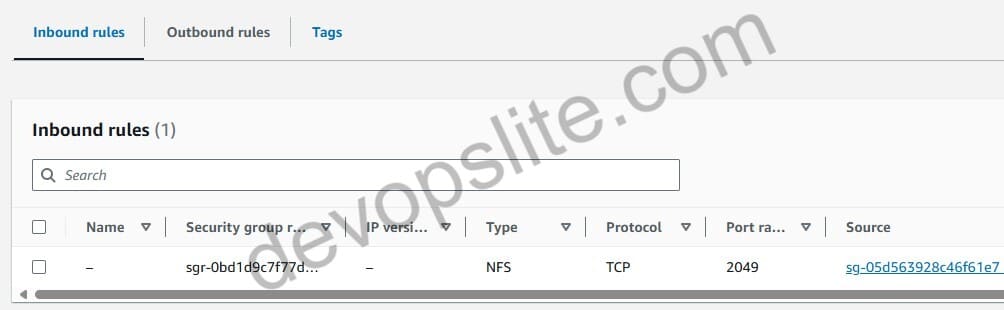
The outbound rule of this SG will be blank, no rules.
The Inbound rule will create a single rule, allowing access to the SG sg-outbound-for-efs
Now note that this SG is allowed in the SG SageMaker domain Inbound rule above.
Create VPC Endpoints
I would like to reiterate that SageMaker is running in VPC only mode, so it will connect to other services through VPC Endpoints.
The AWS documentation I attached above guides you to create some Endpoints. I will give you the list here.
- com.amazonaws.ap-southeast-1.s3
- com.amazonaws.ap-southeast-1.events
- com.amazonaws.ap-southeast-1.sagemaker.api
- com.amazonaws.ap-southeast-1.sagemaker.runtime
- com.amazonaws.ap-southeast-1.servicecatalog
- com.amazonaws.ap-southeast-1.sts
- com.amazonaws.ap-southeast-1.logs
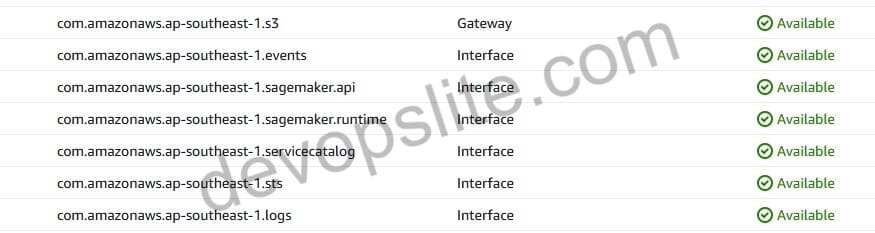
As you can see in the image above, the endpoint for the S3 service will have the Gateway type while the other endpoints will have the Interface type.
You can learn more about how to create a VPC Endpoint here.
The setup of these two types will be slightly different.
- These are the settings for the S3 Endpoint with type Gateway.
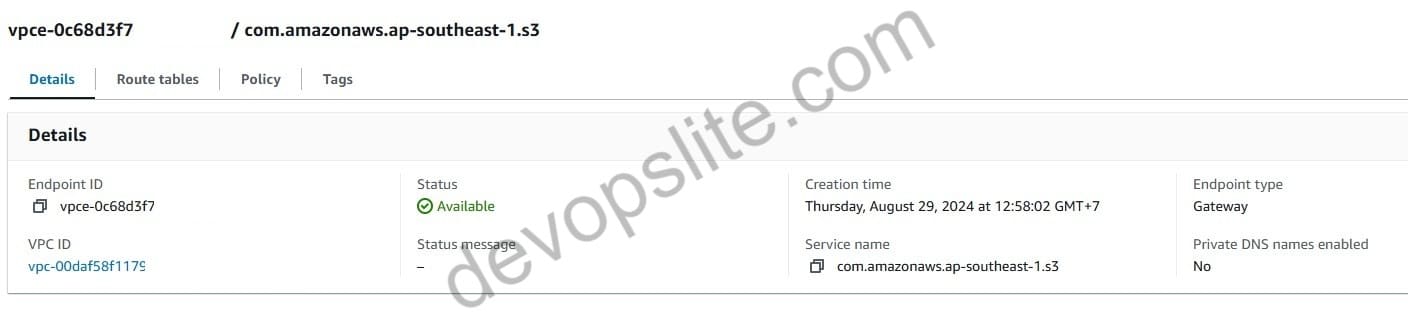
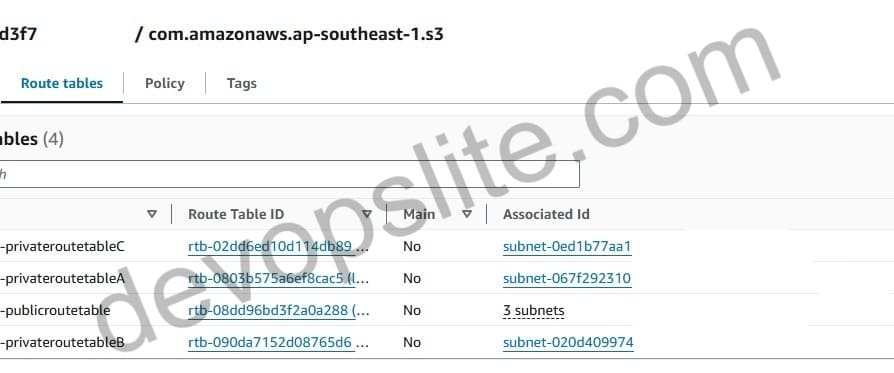
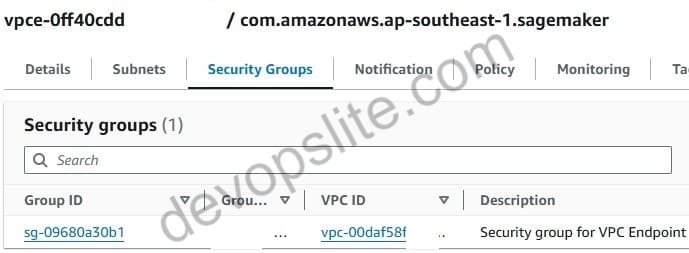
- And here are the settings for other Endpoints with type Interface. Note that only these Endpoints use the Security Group we created above.
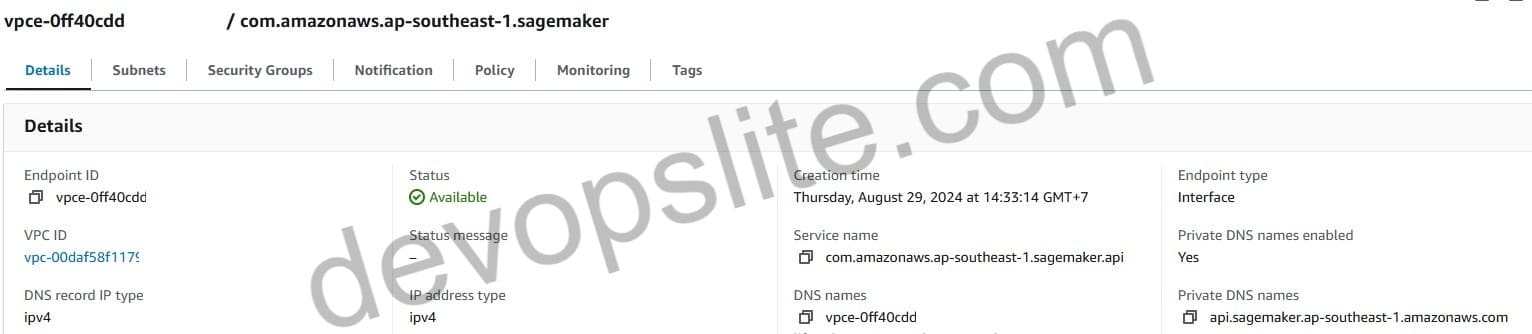
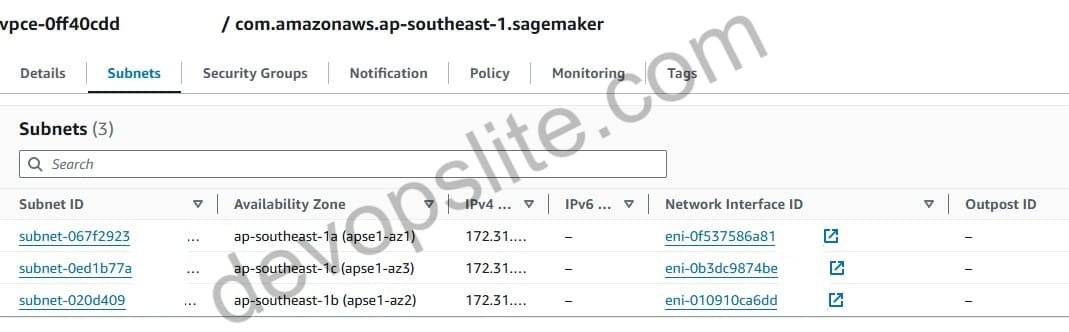
Conclusion
In my case, after checking and recreating the 3 main types of resources above including: NAT Gateways, Security Groups and VPC Endpoints. The error “The loading screen is taking a long time. Would you like to clear the workspace or keep waiting?” has been resolved. The other two error messages have also been resolved.
But if you still encounter the error, you can try to continue checking the IAM Role assigned to SageMaker to see if it has enough rights.
Or is there any other setting that can block its operation.
The more complex the system, the more difficult it is to handle errors and requires handling each error. It may be very different from this article.
But anyway, I hope this article can help those who encounter the same error.

