
Table of Contents
What is a git conflict?
A git conflict happens when Git encounters differences in the same lines of code across different branches that it cannot reconcile automatically. This usually occurs during a merge or rebase operation. Understanding how to resolve these conflicts is crucial for maintaining a clean and functional codebase.
Identifying a git conflict
When a conflict occurs, Git will pause the merge or rebase process and notify you that there is a conflict. You can identify which files have conflicts by running the following command:
Example command
git statusThis command will list the files that have conflicts and need to be resolved. Git will mark the conflicting sections within the files, allowing you to review and choose the appropriate changes.
Resolving conflicts with git merge
The git merge command is often used to integrate changes from one branch into another. However, conflicts can arise during this process if both branches have modified the same lines of code. Let’s walk through how to resolve a git conflict during a merge.

git merge command.Example command
git checkout main
git merge feature-branch
In this example, you attempt to merge feature-branch into your current branch. If there are conflicting changes, Git will highlight the conflict within the affected files. The conflicting sections will look something like this:
<<<<<<< HEAD
Current branch changes
=======
Feature branch changes
>>>>>>> feature-branch
If you use VS Code to open the file, it will display like the image below and support you with buttons to resolve the conflict. In this example, I clicked the Accept Both Changes button and saved the file.

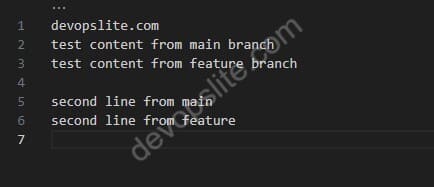
To resolve the conflict, you need to decide which changes to keep. You can either:
- Keep the changes from the current branch.
- Keep the changes from the feature branch.
- Combine the changes from both branches.
After editing the file to resolve the conflict, you need to mark the file as resolved and then commit the merge.
Marking as resolved and committing

git add conflicted-file.txt
git commit -m "Resolve conflict during merge"
git push
Resolving conflicts with git rebase
The git rebase command is another method used to apply changes from one branch onto another. Like merging, rebasing can also result in conflicts when changes overlap. Resolving conflicts during a rebase follows a similar process to resolving them during a merge.

git rebase.The difference between git merge and git rebase you can see is whether to handle git conflicts before or after executing the git merge command.
With git merge, the conflict will appear right at the time you type the command and you have to resolve the conflict to continue merging the branch.
With git rebase, you will check for conflicts and resolve them before you execute the git merge command.
Example command
git rebase mainIn this example, you are rebasing your current branch onto the main branch. If conflicts arise, Git will pause the rebase and indicate which files have conflicts.

git rebase.To resolve these conflicts, follow the same process of editing the files to resolve the conflicting sections. After resolving the conflicts, instead of committing, you need to continue the rebase process.
Continuing the rebase
git add .
git rebase --continue
Once the rebase is complete, you can now merge the branch as normal and should have no conflicts.
While merging, it will display the git message with the default editor you have set up for git (here, I use notepad++ as the default editor). You can edit the message if needed, otherwise just close the window.

git checkout main
git merge feature-branch
git push
If you need to abort the rebase and return to the previous state, you can use:
Aborting the rebase
git rebase --abortBest practices for avoiding git conflicts
While it’s impossible to avoid conflicts entirely, following best practices can help minimize their frequency and complexity.
Commit and push frequently
Frequent commits and pushing your changes to the remote repository reduce the likelihood of conflicts by ensuring that everyone is working with the latest version of the code.
Pull updates regularly
Regularly pulling updates from the main branch or the branches your work depends on helps you stay up-to-date with changes, reducing the chances of conflicts when you merge or rebase.
Communicate with your team
Effective communication with your team about the areas of the code you are working on can prevent overlapping changes that lead to conflicts.
Use smaller, focused branches
Working on smaller, focused branches that address specific features or fixes makes it easier to merge changes without conflicts.
Conclusion
Handling git conflicts is a vital skill for developers, ensuring that your codebase remains functional and up-to-date. Whether using git merge or git rebase, understanding how to identify and resolve conflicts is crucial. By following the steps outlined in this guide, you can confidently manage git conflicts and maintain a clean, organized project history.
Remember to follow best practices, such as committing frequently and communicating with your team, to minimize the likelihood of conflicts. With these tools and techniques at your disposal, you’ll be well-equipped to handle any git conflict that comes your way.

