
Table of Contents
Understanding the history of your codebase is crucial in any development process. Git provides a powerful command called git log that allows you to view the git history of your repository. This article will guide you through using git log to inspect the changes, understand the project’s evolution, and manage your commits effectively.
Introduction to git history
Git history is the record of all changes made in a repository. By using the git log command, you can view this history, which includes information about commits, authors, dates, and messages. Knowing how to navigate your git history is essential for debugging, code reviews, and collaboration.
Basic git log usage
The simplest way to view your git history is by running the git log command. This command shows a list of commits in reverse chronological order, displaying each commit’s hash, author, date, and commit message.
Example command
git logWhen you execute this command, you will see an output similar to this:
commit ddbbaf6a545a9a528bab282997080f84b3d6aa32 (HEAD -> main, origin/main, origin/HEAD, feature-branch)
Author: Daniel Pham <[email protected]m>
Date:   Tue Aug 27 22:28:19 2024 +0700

    update 3rd line from feature

commit 205881f94eff2a5da6a3fdaa74ee93a8254f8468
Author: Daniel Pham <[email protected]m>
Date:   Tue Aug 27 22:29:17 2024 +0700

    update 3rd line from main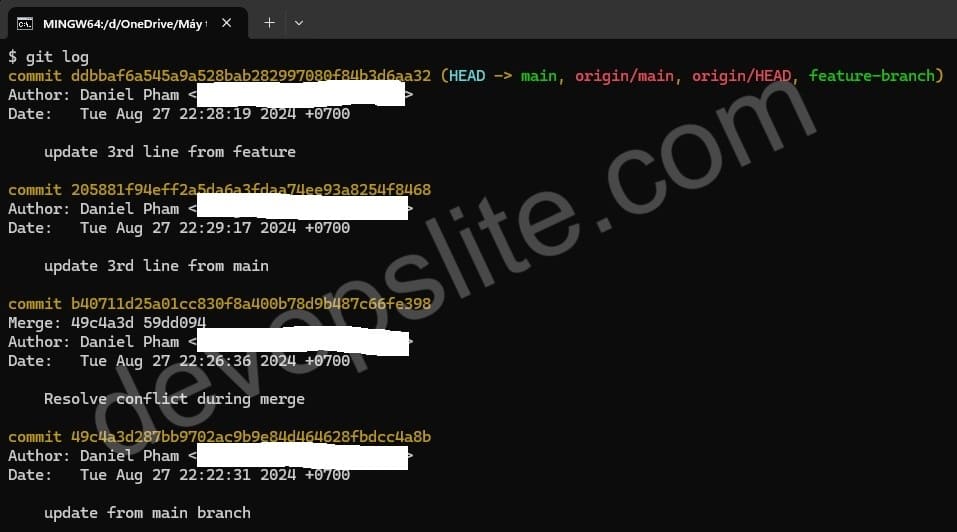
git log command.This output shows the unique commit ID, the author of the commit, the date, and the commit message. By default, git log provides detailed information, which can be filtered or customized to meet your needs.
Customizing git log output
git log offers various options to customize the output, allowing you to view the git history in different formats. Here are some useful options:
Display a one-line summary
To display a concise, one-line summary of each commit, use the --oneline option. This format is helpful when you want a quick overview of the commit history.
Example command
git log --onelineSample output:
ddbbaf6 (HEAD -> main, origin/main, origin/HEAD, feature-branch) update 3rd line from feature
205881f update 3rd line from main
b40711d Resolve conflict during merge
49c4a3d update from main branch
git log --oneline command.Each commit is displayed in a single line, showing the commit hash and the commit message. This makes it easier to scan through the history quickly.
Limiting the number of commits
If you’re only interested in the most recent commits, you can limit the number of commits displayed using the -n option.
Example command
git log -n 5This command will display the last five commits in the git history. Adjust the number to suit your needs.

Filtering by author
To view commits made by a specific author, use the --author option followed by the author’s name or email.
Example command
git log --author="Daniel Pham"This command will filter the git history to show only commits made by “John Doe.” This is useful for tracking changes made by a particular contributor.
Viewing changes in git history
Besides viewing the commit log, you might want to see the actual changes introduced in each commit. The git log command can be combined with the -p option to show the differences (diffs) introduced by each commit.
Example command
git log -pThis command will display the commit history along with the changes made in each commit. The output can be extensive, so it’s often used when you need a detailed review of changes.

Formatting the git log output
For a more customized view of the git history, you can format the output using the --pretty option. This option allows you to specify a custom format for displaying commit information.
Example command
git log --pretty=format:"%h - %an, %ar : %s"Sample output:
ddbbaf6 - Daniel Pham, 3 weeks ago : update 3rd line from feature
205881f - Daniel Pham, 3 weeks ago : update 3rd line from main
b40711d - Daniel Pham, 3 weeks ago : Resolve conflict during merge
In this example, %h is the abbreviated commit hash, %an is the author name, %ar is the relative date, and %s is the commit message. This format provides a compact and informative overview of the git history.
Practical uses of git history
Knowing how to navigate and understand the git history is valuable in various scenarios:
Code review and debugging
When reviewing code or debugging an issue, viewing the git history helps you identify when specific changes were introduced and by whom. You can use git log to trace the origin of bugs or review the progression of a feature.
Restoring previous states
By examining the git history, you can find specific commits that you want to revert to or reference. You can use the commit hash with commands like git checkout or git revert to navigate or restore previous states of your project.
Collaboration and tracking contributions
Viewing the git history with options like --author helps you track contributions from different team members. This is essential for understanding who made certain changes and coordinating collaborative efforts.
Conclusion
Understanding git history is a fundamental skill for any developer working with Git. The git log command provides a powerful way to view and navigate the history of your repository. By using various options and filters, you can customize the output to suit your needs, whether for code review, debugging, or tracking contributions.
Mastering git log allows you to manage and understand the evolution of your codebase more effectively. With this guide, you are now equipped to explore the rich history of your projects using Git, making it an invaluable tool in your development workflow.

