
Table of Contents
When working with Git, it’s essential to keep your repository clean and free of unnecessary files. This is where .gitignore comes into play. The .gitignore file allows you to specify files and directories that Git should ignore, preventing them from being tracked in your repository. In this article, we will explore how to create and use a .gitignore file to ignore unwanted files effectively.
What is .gitignore?
A .gitignore file is a simple text file that tells Git which files or directories to ignore in a project. By ignoring specific files, you can avoid cluttering your repository with unnecessary files such as temporary files, log files, and build artifacts. This helps maintain a clean and efficient project history.
Creating a .gitignore file
To start using .gitignore, you need to create a .gitignore file in the root directory of your repository. You can create this file using a text editor or by running a simple command in the terminal.

.gitignore file in the root directory of the repository.Example command
touch .gitignoreThis command creates an empty .gitignore file in the current directory. You can then open this file in a text editor and start adding patterns to specify which files or directories should be ignored by Git.
Writing rules in .gitignore
In the .gitignore file, you define rules using patterns that match the files or directories you want Git to ignore. Here are some common patterns you can use in a .gitignore file:
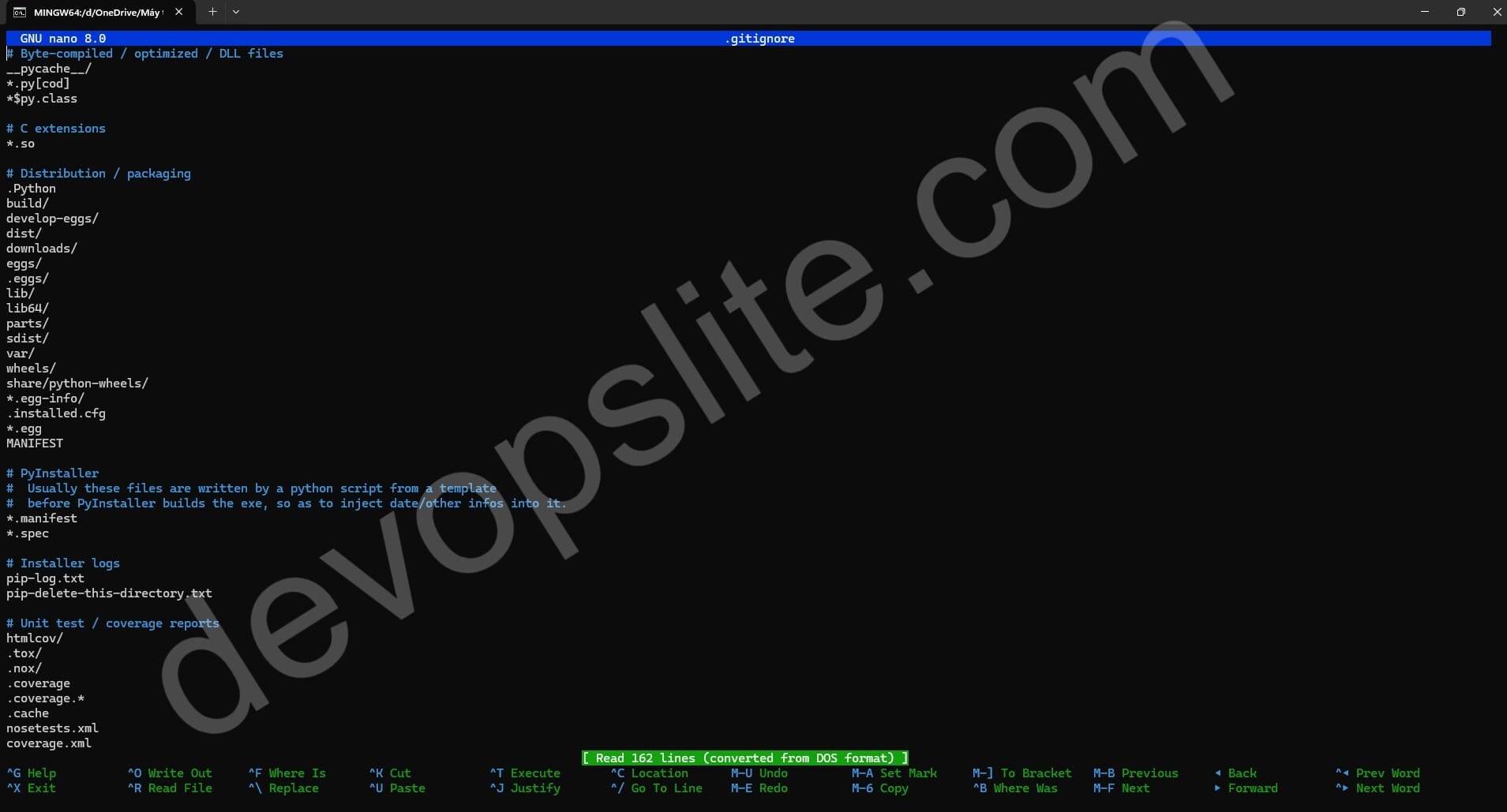
Ignoring specific files
To ignore a specific file, simply add its name to the .gitignore file.
Example
secret.txtThis rule tells Git to ignore the file secret.txt. If this file exists in the repository, Git will not track it or include it in future commits.
Ignoring all files of a specific type
You can ignore all files of a certain type by using the * wildcard character. For example, to ignore all .log files:
Example
*.logThis pattern matches any file ending with .log and tells Git to ignore it. This is useful for ignoring log files that are generated during development or testing.
Ignoring directories
To ignore an entire directory, add the directory name followed by a /.
Example
cache/This rule tells Git to ignore the cache directory and all of its contents. You can use this to ignore temporary directories, build directories, or other folders that don’t need to be tracked.
Ignoring files in a specific directory
If you want to ignore files in a specific directory but not in others, you can specify the path relative to the root of the repository.
Example
logs/*.logThis pattern tells Git to ignore all .log files in the logs directory, but not in other directories.
Using .gitignore with comments
You can include comments in the .gitignore file by starting a line with the # character. Comments can help you and others understand the purpose of the rules in the file.
Example
# Ignore log files
*.log

# Ignore temporary files
*.tmp
These comments describe the purpose of the rules, making it easier for collaborators to understand the intention behind ignoring specific files.
Using .gitignore with exceptions
Sometimes you may want to ignore all files of a certain type except for specific ones. You can use the ! character to negate a pattern, telling Git not to ignore a particular file.
Example
# Ignore all .txt files
*.txt

# But do not ignore important.txt
!important.txt
In this example, all .txt files will be ignored except for important.txt.
Applying changes to .gitignore
Once you’ve added patterns to your .gitignore file, the changes will only affect files that haven’t been tracked by Git yet. If a file is already tracked by Git, adding it to .gitignore will not remove it from the repository.
To stop tracking a file that is already in the repository, you need to untrack it using the git rm command with the --cached option.
Example command
git rm --cached secret.txtThis command removes secret.txt from the Git index, so it will no longer be tracked. After running this command, you should commit the changes to apply the new .gitignore rules.
Example command
git commit -m "Update .gitignore to stop tracking secret.txt"Common use cases for .gitignore
Ignoring environment-specific files
Projects often contain environment-specific files like configuration files, environment variables, or system-specific build files. These files should not be tracked in the repository as they vary across different development environments.
Example
# Ignore environment files
.env
Ignoring dependencies and build files
In many projects, especially those using package managers like npm or Python’s pip, there are dependency files and build artifacts that should not be committed to the repository.
Example
# Ignore node_modules directory
node_modules/

# Ignore Python compiled files
__pycache__/
*.pyc
Conclusion
Using .gitignore is essential for maintaining a clean and efficient Git repository. By creating and using a .gitignore file, you can ensure that unnecessary files are not tracked, making your repository easier to manage and collaborate on. Understanding how to write rules in .gitignore allows you to control what files and directories should be ignored, keeping your repository focused on the important parts of your project.
With the knowledge of how to use .gitignore effectively, you can streamline your workflow and maintain a well-organized codebase.

