
Table of Contents
In this article, I will guide you to install Prometheus and Grafana on Ubuntu 18.04.
For those of you who don’t know what these 2 tools are?
What are Prometheus and Grafana?
Let me summarize:
- Prometheus is an open source monitoring and alerting tool. Developed by SoundCloud since 2012, it supports time series data, similar to InfluxDB.
- Grafana is a “graphing” tool that allows you to query and draw visual tables/charts based on available data.
So what do we get when we combine Prometheus and Grafana? Prometheus collects monitoring data from endpoints (servers, switches, firewalls, websites…). Grafana will display charts based on Prometheus data.
Prepare Ubuntu 18 server
To get started, you can use Ubuntu server 18 with the following configuration:
- 1 vCPU
- 1 GB RAM
- 40 GB HDD
- OS: Ubuntu server 18.04
- User: root
For larger systems, you need to customize the configuration according to the level of system usage.
Initial settings for the server
You will need to execute a few commands before installing the main tools.
Update packages.
apt updateSet up timezone.
timedatectl set-timezone "Asia/Ho_Chi_Minh"
timedatectl set-ntp true
systemctl restart systemd-timesyncd
Install IPtables firewall (if you want).
apt install iptables-persistent netfilter-persistent -yInstall Prometheus on Ubuntu 18
First you need to determine the latest version to use according to this link.
export RELEASE="2.20.1"Download and extract the installation package.
wget https://github.com/prometheus/prometheus/releases/download/v${RELEASE}/prometheus-${RELEASE}.linux-amd64.tar.gz
tar xvf prometheus-${RELEASE}.linux-amd64.tar.gz
cd prometheus-${RELEASE}.linux-amd64/
Create a user for the Prometheus service.
groupadd --system prometheus
grep prometheus /etc/group
useradd -s /sbin/nologin -r -g prometheus prometheus
Create a directory containing the Prometheus configuration file.
mkdir -p /etc/prometheus/{rules,rules.d,files_sd} /var/lib/prometheusMove the binary executable files to the local bin folder and copy the consoles folder, config file.
cp prometheus promtool /usr/local/bin/
cp -r consoles/ console_libraries/ /etc/prometheus/
cp prometheus.yml /etc/prometheus/
Assign permissions to the prometheus user.
chown -R prometheus:prometheus /etc/prometheus/ /var/lib/prometheus/
chmod -R 775 /etc/prometheus/ /var/lib/prometheus/
Create systemd file for prometheus service.
nano /etc/systemd/system/prometheus.serviceCopy the content below into the file.
[Unit]
Description=Prometheus systemd service unit
Wants=network-online.target
After=network-online.target

[Service]
Type=simple
User=prometheus
Group=prometheus
ExecReload=/bin/kill -HUP $MAINPID
ExecStart=/usr/local/bin/prometheus \
--config.file=/etc/prometheus/prometheus.yml \
--storage.tsdb.path=/var/lib/prometheus \
--web.console.templates=/etc/prometheus/consoles \
--web.console.libraries=/etc/prometheus/console_libraries \
--web.listen-address=0.0.0.0:9090 \
--storage.tsdb.retention.time=1y

SyslogIdentifier=prometheus
Restart=always

[Install]
WantedBy=multi-user.target
Enable and start the prometheus service.
systemctl daemon-reload
systemctl start prometheus
systemctl enable prometheus
Now you can access the browser IP:9090 to enter the prometheus program interface. For example: http://192.168.1.10:9090. By default, the prometheus program interface will not have any lock/login protection layer.
Install Grafana on Ubuntu 18
Now, we will install Grafana and this is much simpler than installing prometheus.
First, you add the Grafana repository to the server.
echo "deb https://packages.grafana.com/oss/deb stable main" | sudo tee -a /etc/apt/sources.list.d/grafana.list
wget -q -O - https://packages.grafana.com/gpg.key | sudo apt-key add
Next, you update the software packages from this repository and install Grafana.
apt-get update
apt-get install grafana -y
After installation is complete, you activate and start the service.
systemctl start grafana-server
systemctl enable grafana-server.service
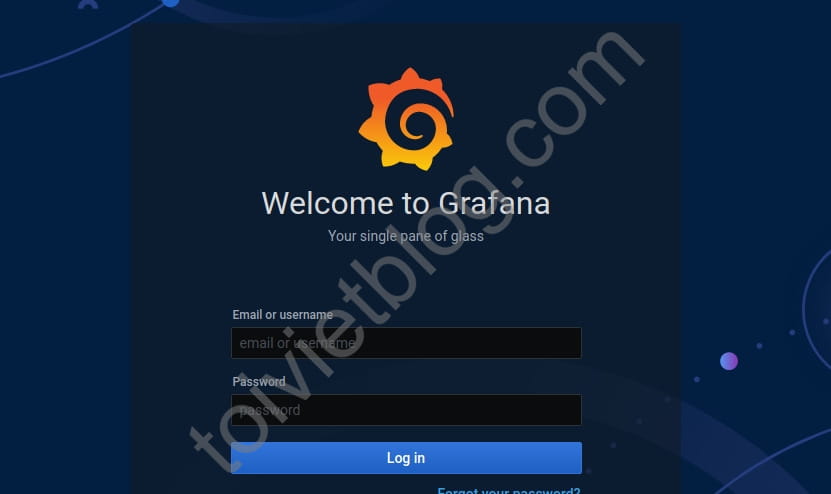
Now you can open your browser and access IP:3000. For example: http://192.168.1.10:3000. The default grafana login account is admin/admin. On your first visit, you will have to change the new password for the admin user.
Conclusion
So I have guided you to install the two tools Prometheus and Grafana on the Ubuntu 18.04 server. In the next articles, I will guide you through the necessary settings and how to use these two tools.

