
Table of Contents
In this article, I will show you how to delete old targets in the Prometheus database. While using Prometheus to monitor your system, the system may change.
For example, the server changes its IP address, the domain to be monitored is no longer in use, etc.
At times like that, the database will still load old data of these targets that no longer exist. So how to delete these old targets from the database?
Enable API admin
First you need to enable the admin API in Prometheus. Otherwise you might get an error like this (or something similar).
{"status":"error","errorType":"unavailable","error":"Admin APIs disabled"}To enable API for admins, open prometheus’s systemd file.
nano /etc/systemd/system/prometheus.serviceRecommended Reading: Install Prometheus and Grafana on Ubuntu 18
Add the following parameters to the ExecStart section:
--web.enable-admin-apiThe file content will be as follows:
[Unit]
Description=Prometheus systemd service unit
Wants=network-online.target
After=network-online.target

[Service]
Type=simple
User=prometheus
Group=prometheus
ExecReload=/bin/kill -HUP $MAINPID
ExecStart=/usr/local/bin/prometheus \
--config.file=/etc/prometheus/prometheus.yml \
--storage.tsdb.path=/var/lib/prometheus \
--web.console.templates=/etc/prometheus/consoles \
--web.console.libraries=/etc/prometheus/console_libraries \
--web.listen-address=0.0.0.0:9090 \
--storage.tsdb.retention.time=60d \
--web.enable-admin-api

SyslogIdentifier=prometheus
Restart=always

[Install]
WantedBy=multi-user.target
Then you reload the daemon and restart the prometheus service.
systemctl daemon-reload
systemctl restart prometheus
Delete the old targets in the Prometheus database
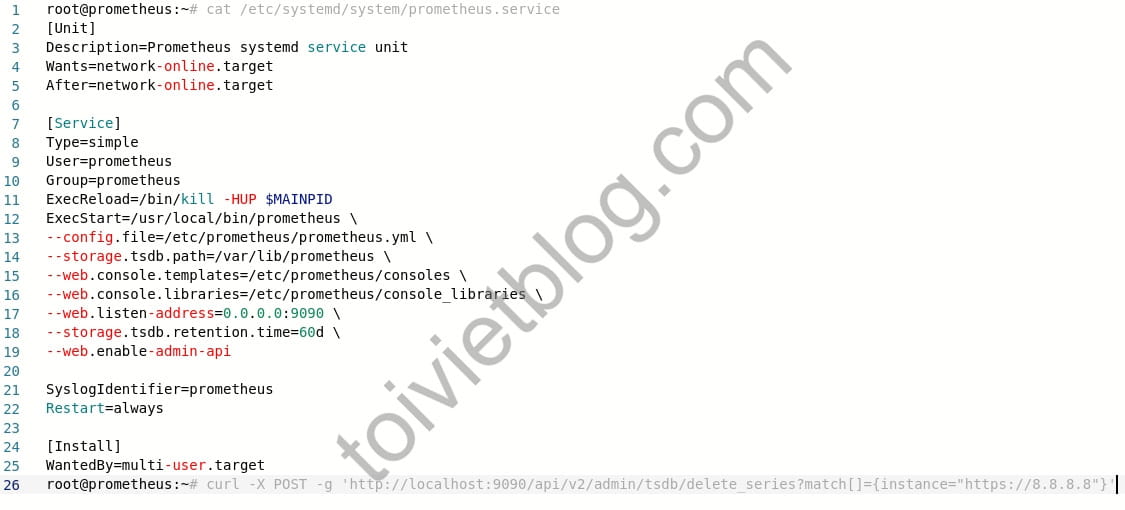
To delete an old target in the prometheus database, use the following syntax:
curl -X POST -g 'http://localhost:9090/api/v2/admin/tsdb/delete_series?match[]={instance="target-name"}'For example, if I want to delete the target monitor, check ping 8.8.8.8.
curl -X POST -g 'http://localhost:9090/api/v2/admin/tsdb/delete_series?match[]={instance="8.8.8.8"}'When you run the above command, if the terminal window does not return any screen, it means your deletion was successful.
Conclusion
This is just a small operation, but it is very useful when you work with prometheus. Hope this article helps you, stay tuned for the next articles.

