
Table of Contents
In this article, I will guide you through the static IP configuration on Ubuntu server 16. Using IP is a common requirement when you build your system, you need to manage your IP closely and clearly.
Check current configuration
You open the ssh window to Ubuntu machine, type the following command to check if the server is currently configured DHCP or static IP configuration. For example, my server has two interfaces, enp0s3 and enp0s8. I want to implement on enp0s8.
cat /etc/network/interfaces | grep enp0s8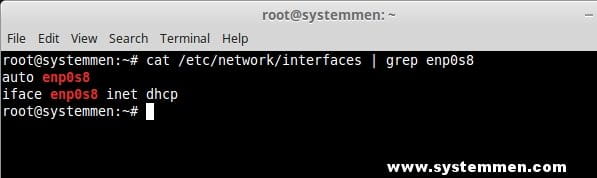
As you can see in the image above, the interface is currently configured to IP through DHCP.
Set static IP for the interface
To set the static IP for the enp0s8 interface, type the following command to open the configuration file:
nano /etc/network/interfacesType the following if you are a regular user:
sudo nano /etc/network/interfacesThe configuration file will open similar to the image below.
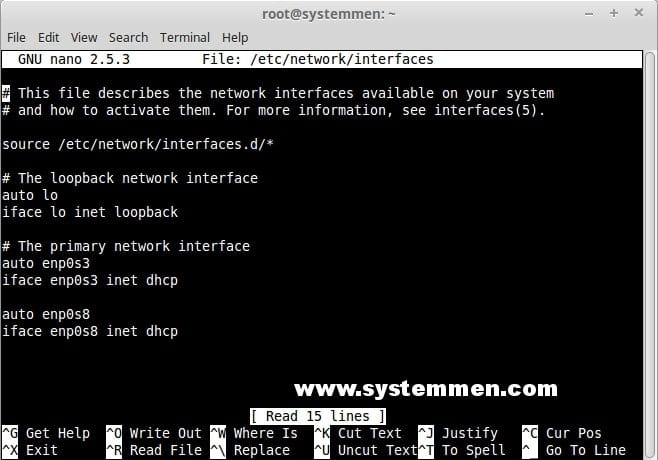
Now delete the following two lines in the file.
auto enp0s8
iface enp0s8 inet dhcp
Then, you copy the following code to the place just deleted 2 lines above.
auto enp0s8
iface enp0s8 inet static
address 192.168.56.20
netmask 255.255.255.0
gateway 192.168.56.1
dns-nameservers 8.8.8.8 8.8.4.4
With:
- 192.168.56.20: the static IP assigned to the interface.
- 255.255.255.0: netmask used for interface, this is /24.
- 192.168.56.1: gateway.
- 8.8.8.8 8.8.4.4: declare IP of DNS server, here we use DNS google.
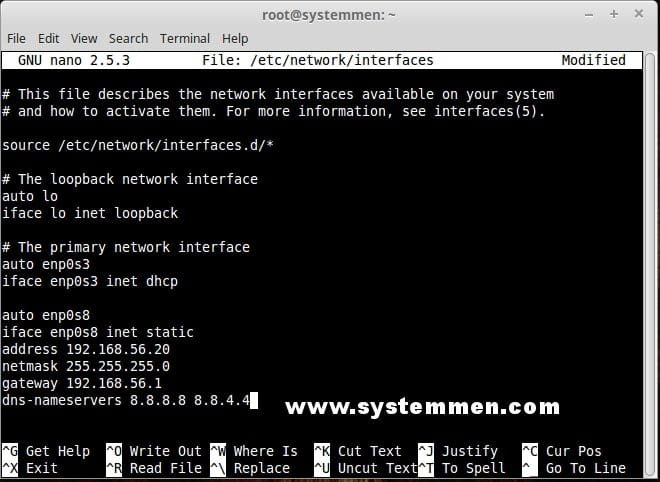
After you finish adding, press Ctrl + X -> press y -> press Enter. This will save the file.
Next you type the following command to flush the old IP, you must be careful at this step. If you were previously ssh over the old IP, after you run this command, you will be disconnected from ssh.
sudo ip addr flush enp0s8Then, you run the command to restart the network service so that the interface can receive the new IP.
sudo systemctl restart networking.serviceNow you can check the new IP:
ip aConclution
With this tutorial, you were able to completely configure a static IP for a server running Ubuntu server 16.
(This is an article from my old blog that has been inactive for a long time, I don’t want to throw it away so I will keep it and hope it helps someone).

