
This article, I will guide you to set up static ip on Debian 9. How the Debian 9 works is similar to Debian 8. Configuring static ip on Debian 9 or Debain 8 is very simple.
Configure static ip in Debian 9
Step 1, you open the file /etc/network/interface using the following command.
nano /etc/network/interfacesStep 2, add the following code to the file.
auto enp0s8
iface enp0s8 inet static
address 192.168.56.31
netmask 255.255.255.0
dns-nameservers 8.8.8.8 8.8.4.4
At this point, you must delete the old configuration lines of the enp0s8 interface. Edit the information that matches your system.
Read more: Configure static IP on Debian 8.
- address: your statis IP, ex: 192.168.56.31
- netmask: your subnet mask, ex: 255.255.255.0 or 24
- gateway (optional): your gateway IP, add this line if you use this interface as default route. Ex: 192.168.56.1
- dns-nameservers: define ip of dns server.
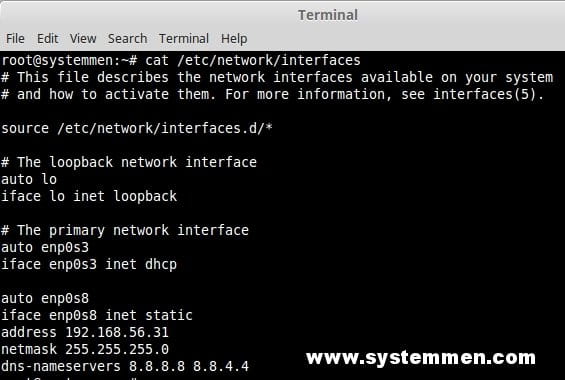
After you add the code, press Ctrl + X -> press y -> press Enter to save the configuration.
Restart networking service
Last step, you need to restart the network service on Debian 9 so that it reads the new configuration you just added.
systemctl restart networking.serviceNote:
- If the server has only one interface, you need to perform setup static ip on the console window. Because you will lose connection to the server when the old IP is removed.
- If the server has multiple interfaces, you should connect to the server using another interface’s IP and perform the setup.
Now you can try ssh to the server via the new IP.
(This is an article from my old blog that has been inactive for a long time, I don’t want to throw it away so I will keep it and hope it helps someone).

