
Table of Contents
What is pipeline and how to use it? This article will tell you about a feature that is most powerful in Linux.
Use pipelines that are common in operating Linux systems, if you want to become a Linux system administrator, remember the pipeline.
What is a pipeline?
Shell Linux gives commands the ability to read data from standard input and send data to standard output. This capability is called pipelines.
Here, it seems a bit confusing. Understand it as a way to redirect data. The data from standard output of a command will piped into standard input of another command.
Pipe operator is | (vertical bar). After a command has this character, it understands that its output data will sent to the next command immediately after the |.
Recommended Reading: How to control iptables in bash script
Structure the command of a pipeline as follows:
$ command-1 | command-2 | command-nExample using pipeline
Now that we are going to go into an example of using pipeline in Linux, what will it look like.
We will do an example using two commands that you already know through previous posts. The ls command and the less command.
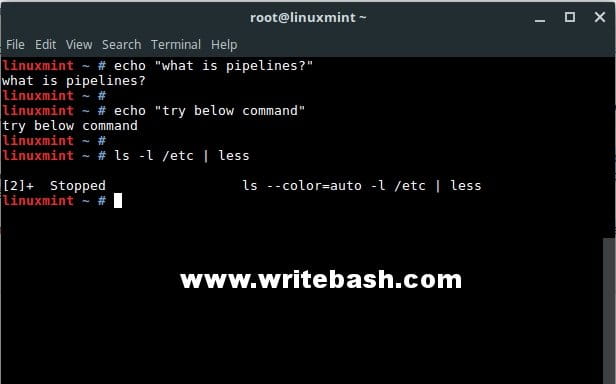
Now type the following command to list all content in the /etc directory. Of course, you already know that the results of the ls command will return on the terminal screen.
$ ls -l /etcThe problem here, is that the list of content in the /etc directory can be very long and in one window will not be able to see the whole.
On the terminal of the desktop, you can roll the mouse cursor upwards to see, but if on the console server, you will have trouble with this. Because you will only see part of the ls command results.
To solve that problem, we will pipe the result of ls command to less. You also know that less can be used to view long content by dividing that content into pages.
Okey, now type the command below and see the results.
$ ls -l /etc | lessBe careful when using > and |
In the previous article, you saw the character > used to redirect I/O redirection, usually to write the result of the command to file.
Therefore, the redirection operator > and the pipeline operator | are two different things, you must be careful when using it.
Warning: Don’t try to use > instead of | in the pipeline.
This command is normal:
$ command-1 > file-1And this command is normal too:
$ command-1 | command-2This command will be very bad, don’t try to use it.
$ command-1 > command-2Conclusion
You may not feel the power of the pipeline now. In the next article in the series, you will understand it. Keep learning more.
(This is an article from my old blog that has been inactive for a long time, I don’t want to throw it away so I will keep it and hope it helps someone).

