
Table of Contents
This article will talk about using Terminal Emulator for the first time after you understand what Terminal Emulator is through the first article of the series. Now, you will get used to it by practicing using.
Launch the terminal emulator
Now, in the operating system menu, open the Terminal program. A new window will appear with text like this:
danie@linuxmint ~ $This is called a shell prompt, it will appear when you call the Terminal program and it will be ready for you to enter shell control commands into it.
These terminal windows may look different depending on the distribution, the distributions on RedHat will look a bit different from the Debian-based distributions. The window may have square brackets like the ones below.
[danie@linuxmint ~] $Understand the Shell Prompt text line
Now we will find out what is the meaning of the text appearing in the terminal window? I will peel off parts of the text so you can understand what it means.
danie@linuxmint: danie is my username on the computer and linuxmint is a computer name.~: this is the symbol representing the current directory in which the shell is interacting. This symbol refers to your home directory, ie danie’s home directory.$: This symbol represents the user’s permission level. It has 2 symbols which are$and#. When the terminal window appears with the$symbol, it means that you are opening a terminal with normal user. With the#symbol, you are opening a terminal with user privileges – root, this is the user with the highest permission on the system.
The terminal window when opened with the root user will look like this:
root@linuxmint ~ #or
linuxmint ~ #Try typing the command on the Terminal window
Now try typing something on Terminal and see what it will look like. For example, I will type the following command:
linuxmint ~ # hidanie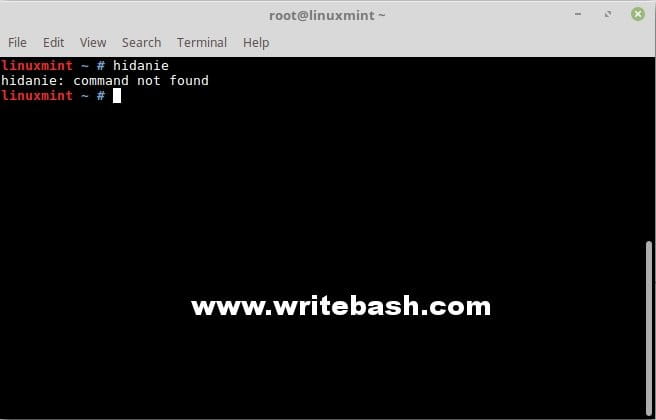
You will receive the hidanie: command not found message. This is obviously true, because you are interacting with the operating system and it only accepts defined commands.
Now try typing the date command and you will get the results returned on the window like this:
linuxmint ~ # date
Wed Jan 9 14:35:48 +07 2019
The first step of practicing using Terminal Emulator, hopefully you can feel nothing difficult.
(This is an article from my old blog that has been inactive for a long time, I don’t want to throw it away so I will keep it and hope it helps someone).

