
Table of Contents
Install aaPanel on Ubuntu 20.04. In this article, I will introduce to you a free hosting panel software called aaPanel.
Introducing aaPanel
aaPanel is a free hosting panel software international version of BAOTA panel. BAOTA panel has been developed since 2014 in China. And currently this panel is being used the most in this country.
In 2019, BAOTA developed an international version called aaPanel. Although this version was developed in a short time, it is worth using.
Prepare the aaPanel server
To perform the demo, I use an Ubuntu server 20.04 with the following configuration:
- OS: Ubuntu 20.04.2 LTS (Focal Fossa)
- CPU: 1 vCPU
- RAM: 1 GB
- HDD: 10 GB
- User: root
You can see more about aaPanel’s hardware recommendations here.
Install aaPanel on Ubuntu 20.04
To install aaPanel, use the command below.
wget -O install.sh http://www.aapanel.com/script/install-ubuntu_6.0_en.sh && sudo bash install.shA message will appear on the terminal window, type y to agree to the installation.
+----------------------------------------------------------------------
| aaPanel 6.0 FOR CentOS/Ubuntu/Debian
+----------------------------------------------------------------------
| Copyright © 2015-2099 BT-SOFT(http://www.aapanel.com) All rights reserved.
+----------------------------------------------------------------------
| The WebPanel URL will be http://SERVER_IP:8888 when installed.
+----------------------------------------------------------------------

Do you want to install aaPanel to the /www directory now?(y/n): y
You wait a few minutes (depending on the speed of the server), the installation is complete and there will be a notification as below.
==================================================================
Congratulations! Installed successfully!
==================================================================
aaPanel Internet Address: http://3.36.119.7:8888/1bcfb848
aaPanel Internal Address: http://10.10.1.48:8888/1bcfb848
username: 3ivpglvn
password: d31228d1
Warning:
If you cannot access the panel,
release the following port (8888|888|80|443|20|21) in the security group
==================================================================
Time consumed: 2 Minute!
Accessing aaPanel for the first time
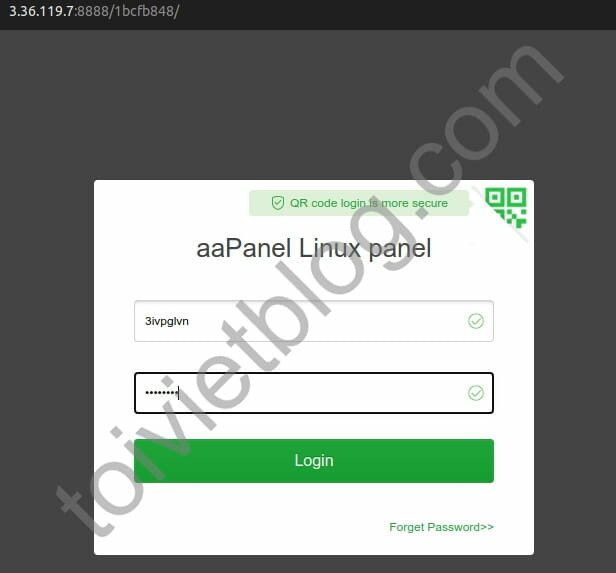
After installation is complete, open your browser and visit http://3.36.119.7:8888/1bcfb848.
Enter your username and password as prompted in the panel.
Then the first stack setup window of aaPanel will appear. Here there will be 2 stacks for you to choose from: LEMP and LAMP.
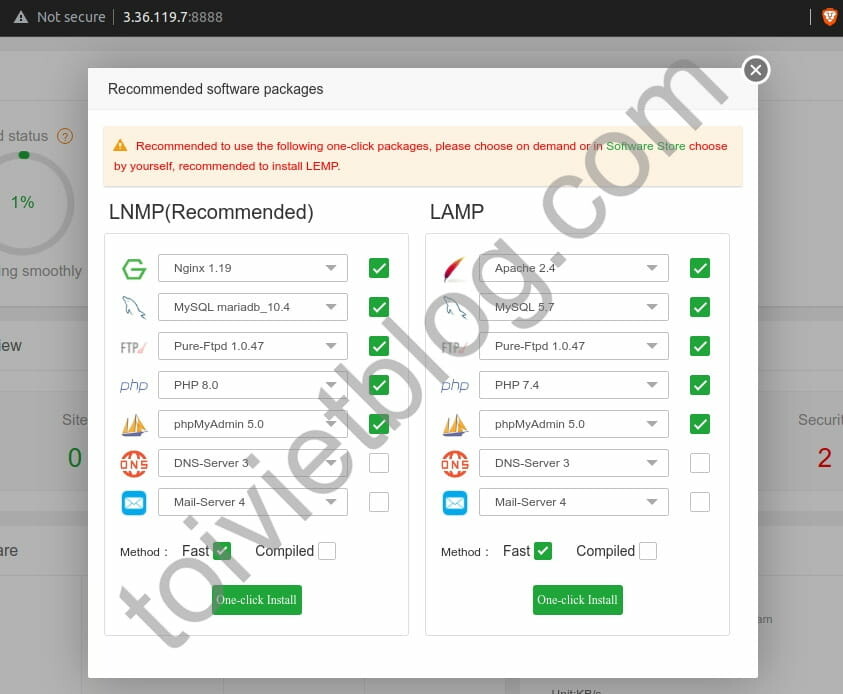
It is recommended that you choose LEMP stack to achieve better speed. However, I will change some options as follows:
- MySQL: choose MariaDB 10.4 instead of MySQL 5.7, MariaDB has much better speed than MySQL.
- PHP: choose PHP 8.0 instead of PHP 7.4, version 8.0 offers better php processing speed.
- DNS server: do not check this box because most of the domain’s DNS will be managed by the domain name service provider.
- Mail server: do not select for 2 reasons:
- Low configuration server (< 1-2 GB RAM) will not allow the mail server to operate well.
- Mail server administration is very difficult when you have to fight spam. Instead you can use free email services for your website.
After setup is complete, click the One-click Install button for the panel to begin installing the necessary stack.
The Task list window will appear, which will show how the packages are being installed. You can turn this window off while you wait or to watch the process unfold.
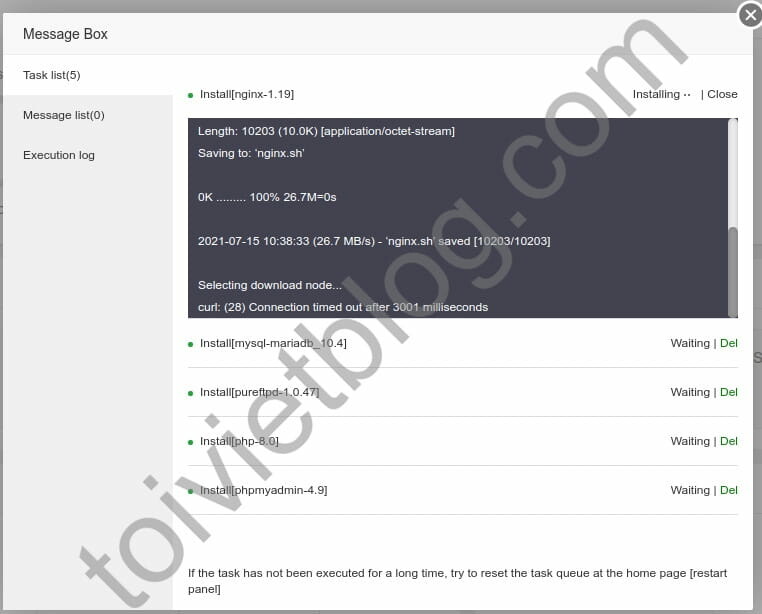
After the Task list window notifies that all software has been installed, you have basically installed aaPanel.
Conclusion
In this article, I have shown you how to install aaPanel on an Ubuntu 20.04 server. In the next articles about aaPanel, I will show you how to use this panel. Please continue to follow the article, thank you.

