
Table of Contents
In this article, I will guide you to set up aaPanel access through domain. Once you have installed aaPanel, you will access it via a link like https://192.168.10.10:8888/abcxyz. This is really quite inconvenient, isn’t it? For those of you who are not technology experts, remembering these numbers is not easy.
To change that, I will set up panel access through the domain. In the example of this article, I will set the domain to https://aapanel.devopslite.com:9999/urlogin. It’s easier to remember, right? To get the :9999/urllogin part, you can review this article.
Create DNS records for domain panel
Well, the first thing is you must own a domain. You can buy a domain name you like at domestic service providers such as TenTen, PAVietnam,…
Next, go to your domain administration page and create a DNS record with the following content.
| NAME | TYPE | VALUE |
| aapanel | A | 15.165.76.22 |
The result will look like the image below.

After you have created the DNS record. Please wait about 5-10 minutes. Normally, current DNS services will update records to the internet quite quickly, sometimes only about 1-2 minutes.
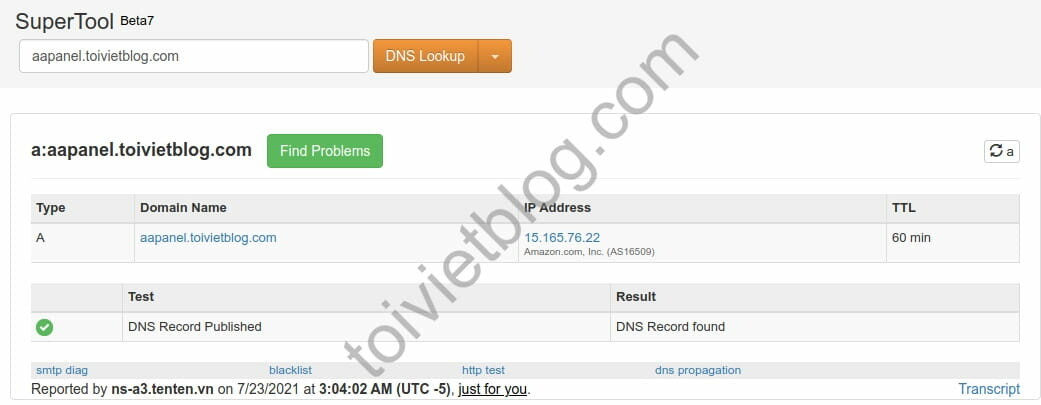
You can check by visiting https://mxtoolbox.com/DNSLookup.aspx and entering the subdomain you just created. As a result, if the check mark is green as shown below, the DNS record was successful.
Set up aaPanel access through domain
Now log in to the panel and select the Settings menu on the left. In the Domain box, enter your subdomain.
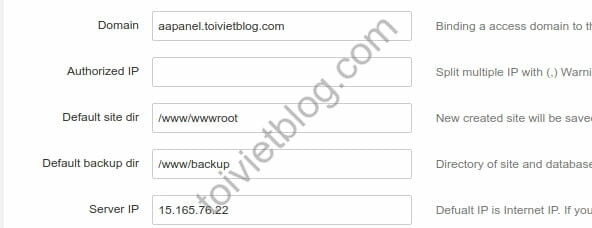
Then click Save at the bottom of the window to save. The panel will now automatically reload with the URL of the domain you just entered. After you enter your admin account, the window below appears, you don’t need to be afraid.
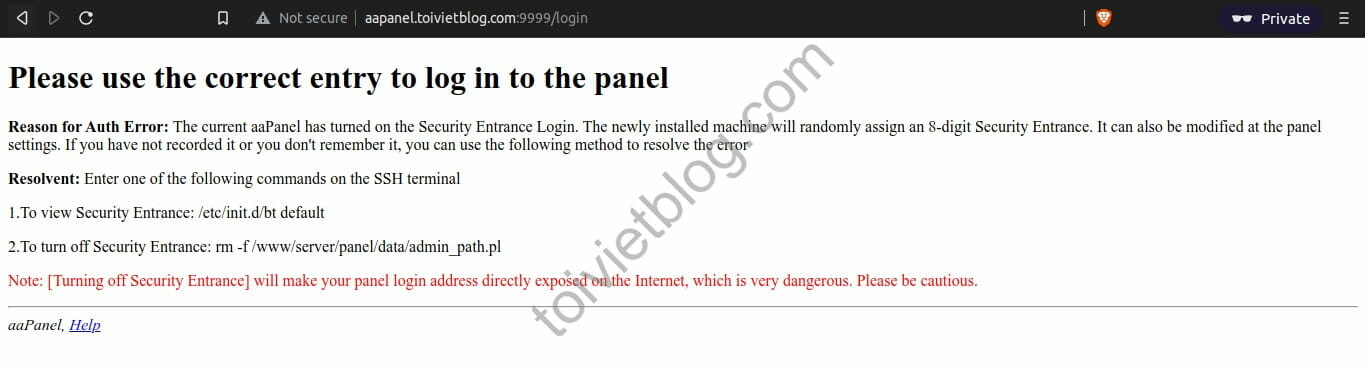
That window is because the URL is missing the Security Entrance part. Now just add it to the path. In the example, I will type the path http://aapanel.devopslite.com:9999/urlogin. The result is as shown below, you will notice that the left corner at the top of the link says Not secure.
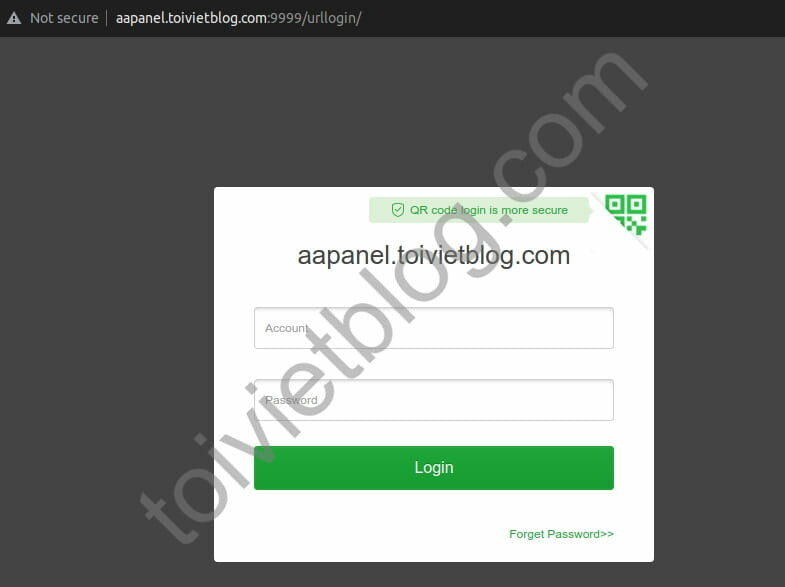
At this point, you can access aaPanel by domain. The thing is that the panel is running HTTP, which is an unencrypted plain-text web protocol. You need to enable HTTPS to ensure web data encryption when accessing the panel.
Enable SSL for aaPanel domain
To access the aaPanel domain via HTTPS, go to the Settings menu on the left side of the panel.
Drag and select the Panel SSL button as shown below.

A new window will appear, choose:
- Cert Type: Let’s Encrypt
- Admin E-Mail: enter your email address. The purpose of this section is because the SSL certificate you use is issued by the Let’s Encrypt organization. The SSL certificate will expire every 90 days and will be automatically renewed by the panel, you do not need to do anything to renew. Before the SSL certificate expires, Let’s Encrypt will send you a notification via this email address.
- I already know…: just select it and you’re done.

Once done, click Submit, next the panel will display a small window, then click Confirm. The process of activating SSL for the domain panel only takes about 15-30 seconds to complete.
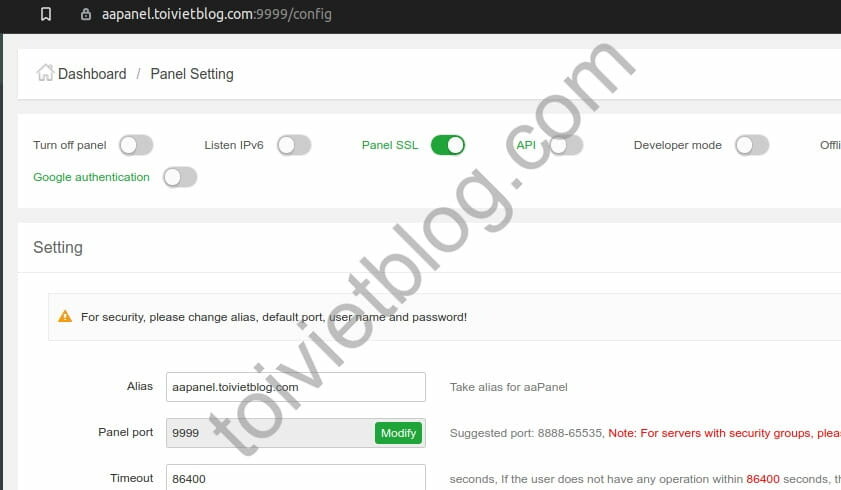
Once the SSL is created, the panel will automatically reload the page again. And this time, when you log in to the panel, you will see the URL as https://aapanel.devopslite.com:9999/config. You will notice that at the top of the URL in the browser there will be a lock icon, so it is successful.
Conclusion
With this article, I have guided you to successfully set up aaPanel access through your domain. At the same time, I have also guided you to enable SSL for the domain panel to be more secure. In the next articles about aaPanel, I will guide you to add other features of the panel.

