
Table of Contents
After you have installed aaPanel, you need to change the initial settings for aaPanel. Why do you need to do this?
The reason is not because aaPanel is insecure. But because they are commonly used tools, the default settings can be dangerous. For example, aaPanel uses the default port 8888. This can be known to hackers or people who want to sabotage. And they can rely on it to find ways to exploit your server.
Change the initial settings for aaPanel
In the admin window of aaPanel, click on the Settings menu on the left. The option setting window will appear as shown below.

Now, please change the following settings one by one.
Alias
Please change the aaPanel Linux panel to the domain you want to use for the panel. For example, I will change it to aapanel.devopslite.com
Panel port
Click the Modify button and change the default port 8888 to any port greater than 1024. For example, I will change it to port 9999. After entering the new port number and checking I already understand, click Confirm and you’re done.
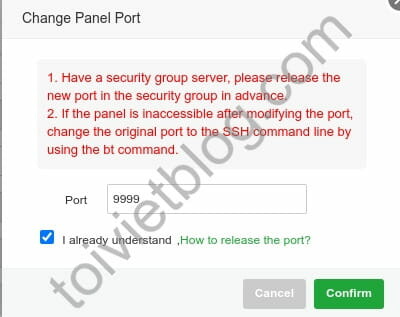
At this point, the panel window will reload itself with the new port number 9999. Note that you need to open the firewall to allow access to port 9999 (or the port you want to use) before you choose to change. Because, if you don’t have a firewall, after changing the port, you will no longer be able to access the panel.
Security Entrance
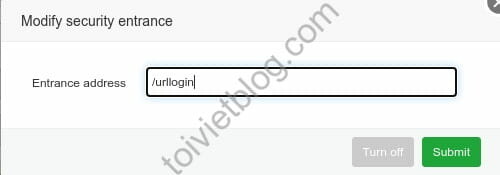
You can keep this part the same or change it as you like. This is the security URI part of aaPanel. You can only log in to the panel when you know this URI part. For example, I will change it to /urllogin to make it easier to remember. But it is recommended that if you change, choose a random string of characters.
BasicAuth
This is one of the important settings that you should not ignore. This setting allows for an additional layer of authentication before you can log in to the panel.
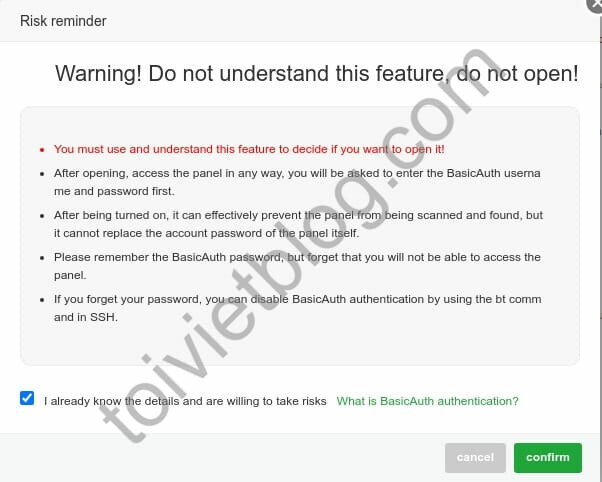
At the BasicAuth setup line, click the Set button. A confirmation window will appear, select it as shown below and click confirm.
Next, a window will appear for you to enter your BasicAuth account. There are 3 lines here:
- Service status: Select
Onto activate this service. - User name: Enter the username you want to use. For example, I enter phamdung.
- Password: Enter the password you want to use.
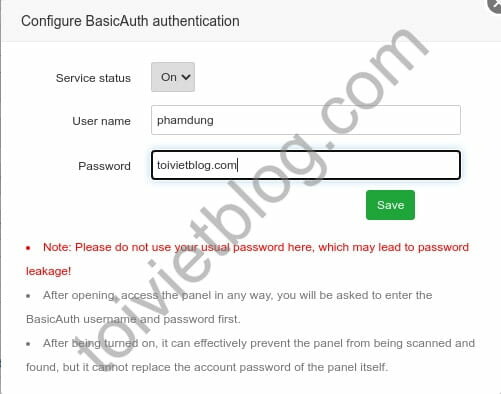
Please note to change the username and password you want to use. And you should choose an account with a slightly more difficult level instead of choosing something like: admin/admin123.
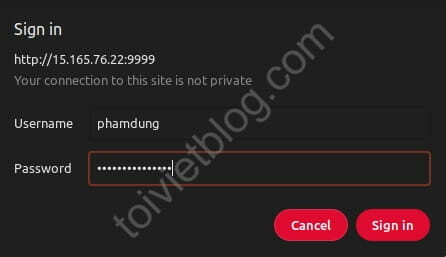
After you click Save, the panel window will automatically reload and display the BasicAuth window as shown below. You must enter the account you just created above to continue using the panel.
Notification
Note: To use the email notification section, your server needs to allow connection to mail service ports such as 25, 465, 587.
This section allows you to set up an email account to send and receive notifications from the panel. Notifications can be such as: someone just logged into your panel, the panel is overloaded or the panel is having problems,…
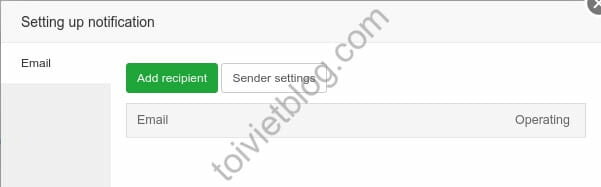
Click the Set button to start setting up this item. A window appears as shown below. You will see 2 parts:
- Recipient: This is the email account that will receive notifications. You can add more than 1 account if you want.
- Sender: This is the email account that the panel will use to send notifications.
Set up Recipient
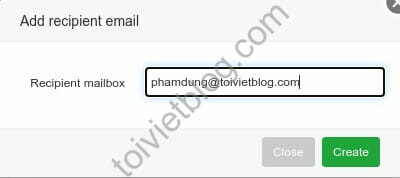
Click the Add recipient button to add an email account to receive notifications. Then, enter your email address in the box and click the Create button.

Set up Sender
Note: to be able to use Gmail. You need to enable the Less secure app access function.
Next, to set up the sender, click the Sender settings button. A window will appear as shown below.
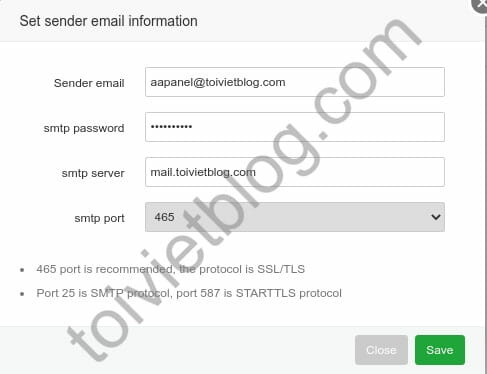
In this window, you will set the following lines:
- Sender email: This is the email address you use to send notifications. In case you use Gmail, you can enter your address for example
[email protected]. - smtp password: This is the password for the email address you just entered above.
- smtp server: In the example, I entered my mail server address. If you use Gmail, you can enter
smtp.gmail.com. - smtp port: This is the connection port to the smtp server. You can use port 465 or 587, it is not recommended to use port 25.
After filling out, click the Save button to save.
Login panel alert
You can only activate this setting after you have set up Notification above. This setting will alert you via email when anyone logs into the panel.
Panel user
Click Modify to change the original username information. A new window appears, enter the new username you want to use.
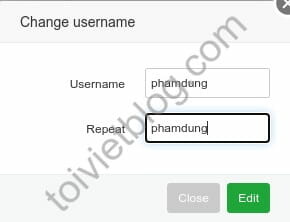
It is recommended here that you can use the Random button to generate a username that is a random string.
Panel password
Similarly for users, you can also click the Modify button to change the panel administration password. And the recommendation here is also that you should use the Random button to generate a random password.
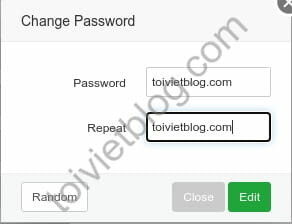
You can save users and passwords to password management tools like Lastpass or Keepass for safety without having to remember what the random string is.
Conclusion
After you change all the settings above, scroll down to the bottom of the Settings window and click the Save button to save them all.
And now, try logging out and then logging back into the panel to see how it goes. You can rest assured that your aaPanel server is even more secure now that the default settings have been changed. In the next article, I will guide you to use the domain for aaPanel.

