
Table of Contents
This article will guide you to install Docker on Ubuntu 18.04. This is one of the popular Linux operating systems today.
You can refer to the docker website for detailed installation instructions.
Full information about the version I use in the article is below.
NAME="Ubuntu"
VERSION="18.04.4 LTS (Bionic Beaver)"
ID=ubuntu
ID_LIKE=debian
PRETTY_NAME="Ubuntu 18.04.4 LTS"
VERSION_ID="18.04"
HOME_URL="https://www.ubuntu.com/"
SUPPORT_URL="https://help.ubuntu.com/"
BUG_REPORT_URL="https://bugs.launchpad.net/ubuntu/"
PRIVACY_POLICY_URL="https://www.ubuntu.com/legal/terms-and-policies/privacy-policy"
VERSION_CODENAME=bionic
UBUNTU_CODENAME=bionic
Uninstall the old version of docker
If you are using Docker for the first time, you can skip this step. What if you “receive” a computer from someone else and it has an old version of Docker installed? You should do this step.
Open terminal and type command:
sudo apt-get remove docker docker-engine docker.io containerd runcInstall docker from repository
You can download the installation package to your computer and install it manually. However, I encourage you to install through the repository. Because this method will help you update the docker version more easily.
Install docker repository
Open the terminal and type the following command:
sudo apt-get update
sudo apt-get install apt-transport-https ca-certificates curl gnupg-agent software-properties-common
Next, add the docker GPG key to your computer.
curl -fsSL https://download.docker.com/linux/ubuntu/gpg | sudo apt-key add -Finally, add the docker repository to your computer.
sudo add-apt-repository "deb [arch=amd64] https://download.docker.com/linux/ubuntu $(lsb_release -cs) stable"Install docker engine on ubuntu 18.04
After adding the docker repository, run the command below to update the latest package and install the docker package.
sudo apt-get update
sudo apt-get install docker-ce docker-ce-cli containerd.io
Once the installation is completed, you can run the command below.
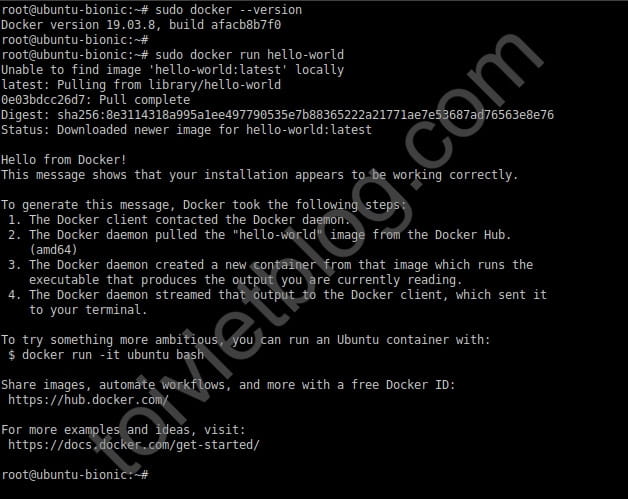
sudo docker run hello-worldThe above command will download a test image to the computer and run it in a container. When the container runs, it prints information to the screen and then exits.
You can check the docker version you just installed.
sudo docker --versionAt this step, you have successfully installed Docker.
Conclusion
This article summarizes the shortest steps for you to successfully install Docker on your Ubuntu 18.04 computer. In the following articles, you will get acquainted with using the docker command line.

