
Table of Contents
This article will guide you to set up htpasswd protection for Prometheus. You know, when accessing the Prometheus interface, there is no login/key window at all.
This is not safe, because you don’t want anyone to be able to see system monitor information. Right?
We have a solution which is htpasswd.
Install and setup htpasswd on Ubuntu 18
Continuing, I will still use the same Ubuntu 18.04 server that we used to install prometheus, grafana and nginx proxy.
First, because the web server is nginx and not apache, we need to install the apache ultis package.
apt install apache2-utils -yNext, we create a folder containing the password file.
mkdir /etc/nginx/htpasswdAnd then, we create a file containing the account used to authenticate for the prometheus domain.
htpasswd -c /etc/nginx/htpasswd/prometheus adminThe above command will create an account with the username admin, the password you will enter optionally during creation.
Set up htpasswd for nginx virtual host domain
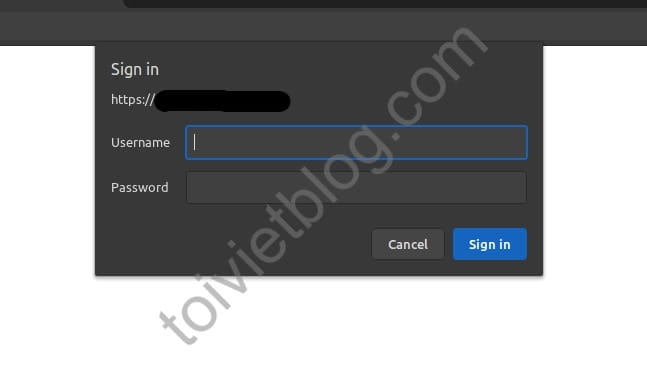
If you use nginx proxy for prometheus, now open the prometheus virtual host configuration file.
Find block / like below.
location / {
...
...
}
Then you add the block / lines below.
auth_basic              "Prometheus";
auth_basic_user_file    /etc/nginx/htpasswd/prometheus;
The block content will look like this.
location / {
    proxy_pass              http://prometheus.example.com;
    include                 /etc/nginx/conf.d/resource/proxypass.inc;
    auth_basic              "Prometheus";
    auth_basic_user_file    /etc/nginx/htpasswd/prometheus;
}
Then you test and reload nginx.
nginx -t
service nginx reload
Conclusion
So you have successfully set up htpasswd for prometheus. Now, every time you access the prometheus interface, you will have to enter the username and password you created. This makes it so that only you (or whoever holds the account) can access the prometheus window.

