
Table of Contents
Zenity supports a pretty interesting command that lets you create a color picker box. If you have ever worked with css then this is a useful tool for you. Zenity create color selection dialog that helps you choose color and returns you the hex code of that color.
Code create color selection dialog
This statement is very simple and the options are not many, you totally just write a few command line is already a color selection tool extremely useful for your work.
The command is:
zenity --color-selectionThe above command uses the --color-selection option, besides, it includes the following options. You just type command below to show all options:
zenity --help-color-selection| Option | Meaning |
--color-selection | Display color selection dialog. This is the main option that you have to use when you want to create a color selection box. |
--color=VALUE | Set the initial color.(ex: #FFFFFF) |
--show-palette | Show the palette |

Script create color selection dialog
The zenity documentation also provides quite a bit of detail on how to use the script to create a color picker. The point is that you can write it as a function or a small program in your big application.
The code below:
#!/bin/bash
# Script by: Danie Pham
# Script site: https://devopslite.com
# Script date: 05-01-2018
# Script ver: 1.0
# Script use to create a color selection dialog. You can import file or funtion to your another script as a child program.

# Function create dialog
f_create_dialog () {
    # Define a variable to get the result
    COLOR=`zenity --color-selection --show-palette`

    # Use 'case' command to display result
    case $? in
        0)  echo "You selected: $COLOR";;
        1)  echo "No color selected.";;
        -1) echo "An unexpected error has occurred.";;
    esac
}

# Function main
main () {
    f_create_dialog
}
main

exit
After you create script, copy code above, you have to grant permission to the script and then execute script:
chmod +x create-dialog.sh
./create-dialog.sh
A color selection box will display like an image below.
Read more: Zenity create a notification icon
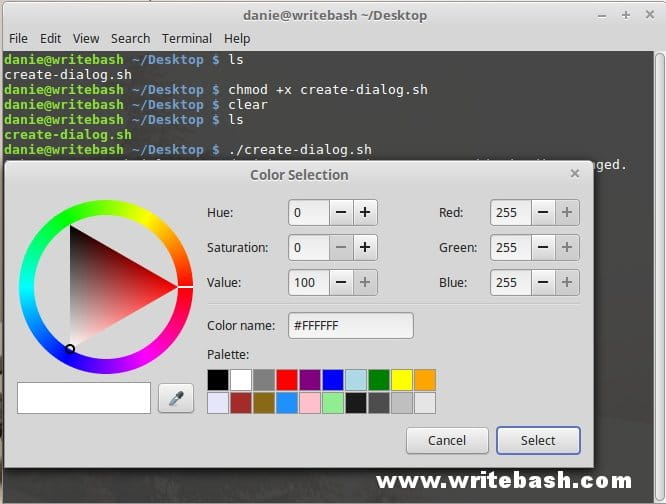
After you select a color, the color picker will turn off and return the color code for you on the terminal screen. For old versions (ex: 3.8.0) zenity will return you hex code like this #ffff00000000, and with new version (ex: 3.18 and later), zenity will return you rgb code like this rgb(211,215,207).
Conclusion
Actually zenity is a very useful tool for those who are using bash because when you combine those two you can create very useful tools for your work.
(This is an article from my old blog that has been inactive for a long time, I don’t want to throw it away so I will keep it and hope it helps someone).

