
Table of Contents
In this article, I will provide you with a script used to backup Gitlab CE data to Amazon S3.
First, the article does not cover working knowledge with AWS. So I will not write down the steps on how to create an S3 bucket, how you create an IAM user, etc.
So, I assume that you already know how to use S3 and IAM in Amazon.
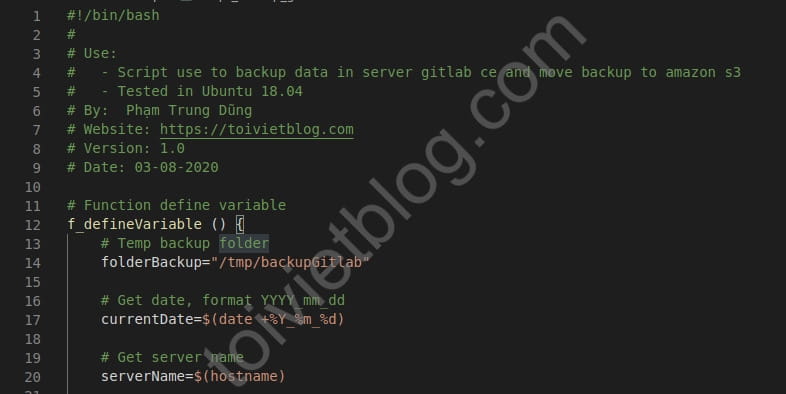
Introducing the Gitlab CE data backup script to Amazon S3
This script is based on the previous article about backup và restore Gitlab that I wrote.
Some of you may wonder that in Gitlab’s config file (file gitlab.rb) there is already a setting to automatically backup data to S3, no need for a script.
Please tell me that this setting does not automatically backup the important folder /etc/gitlab. This directory contains important system settings and secret variables.
So the backup script was born.
Content of backup script
Below is the content of the Gitlab backup script. You can copy the backup script here.
#!/bin/bash
#
# Use:
#   - Script use to backup data in server gitlab ce and move backup to amazon s3
#   - Tested in Ubuntu 18.04
# By:  Daniel Pham
# Website: https://devopslite.com
# Version: 1.0
# Date: 03-08-2020

# Function define variable
f_defineVariable () {
    # Temp backup folder
    folderBackup="/tmp/backupGitlab"

    # Get date, format YYYY_mm_dd
    currentDate=$(date +%Y_%m_%d)

    # Get server name
    serverName=$(hostname)

    # Get current folder
    currentFolder=$(pwd)

    # Folder gitlab config
    gitConfigFolder="/etc/gitlab"
}

# Function backup data
f_backupData () {
    # Create folder backup
    if [[ -d "$folderBackup" ]]; then
        rm -rf $folderBackup
    else
        mkdir -p $folderBackup
        mkdir -p $folderBackup/iptables
    fi

    # Call command gitlab backup to backup all data
    /usr/bin/gitlab-backup create

    # Find the `full name` of backup file
    backupFile=`find /var/opt/gitlab/backups | grep "$currentDate"`

    # Move/copy all needed data to backup file
    mv $backupFile $folderBackup/
    cp -rp $gitConfigFolder $folderBackup/

    # If you using IPtables in Ubuntu 18, uncomment 2 lines below
    #cp -rp /etc/iptables/default.rules $folderBackup/iptables/
    #cp -rp /etc/iptables/rules.v4 $folderBackup/iptables/

    # Create backup configuration file
    tar -cvzf $currentDate.$serverName.gitlab.tar.gz $folderBackup

    # Move backup file to s3 bucket
    aws s3 mv $currentFolder/$currentDate.$serverName.gitlab.tar.gz s3://your-s3-bucket-name/ --region your-s3-region
}

# Function clear backup files after move to s3 done
f_clearFile () {
    # Remove file backup
    if [[ -f "$currentDate.$serverName.gitlab.tar.gz" ]]; then
        rm -f $currentDate.$serverName.gitlab.tar.gz
    fi

    # Remove folder temp backup
    if [[ -d "$folderBackup" ]]; then
        rm -rf $folderBackup
    fi
}

# Function main
f_main () {
    f_defineVariable
    f_backupData
    f_clearFile
}
f_main

# Exit
exit
I have commented all the commands in the script so it is quite easy to understand.
The script is divided into 3 processing functions and 1 main function:
f_defineVariable (): This function’s purpose is just to declare some variables that I will use in the script.f_backupData (): This function will backup the necessary data, package the backup file, and transfer the backup file to Amazon S3.- Và hàm
f_clearFile (): This function clears temporary folders/files after backing up to S3.
Use Gitlab data backup script
After you copy the above script content to your Gitlab server, name the file backup_data_gitlab.sh and place it in the /opt directory.
You will need to replace 2 values inside the script:
your-s3-bucket-name: The corresponding bucket name on your S3.your-s3-region: bucket’s region code, for example:ap-southeast-1.
Then type crontab -e to schedule the backup script to execute, note that it is being done with the root user.
Here I choose 0:00 every day.
0 0 * * * /bin/bash /opt/backup_data_gitlab.shConclusion
So you have completed setting up automatic backup of Gitlab CE data to Amazon S3. You can check whether the script works or not by typing the command /bin/bash /opt/backup_data_gitlab.sh and then checking whether the bucket has data or not.

