
Table of Contents
In this article, I will show you how to create USB Boot Linux Mint 19 in a computer running Linux Mint 18.
My request arise
I am using a Linux Mint 18 computer to work. And I bought another computer to work at home, and this machine also wanted to install Linux Mint. But the newer version, Cinnamon version 19.1.
Previously, I created USB Boot Mint 17.1 with USB Image Writer available on my computer. It is easy and no trouble.
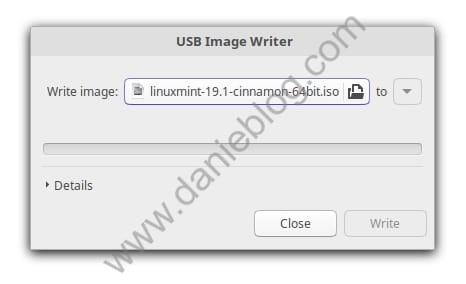
You just plug the USB into the computer, open the USB Image Writer program and select the ISO file to burn to USB, wait about 5 minutes and finish.
But this time it was different, I constantly encountered errors that could not be written to USB when creating USB Boot Mint 19 using USB Image Writer.
Recommended Reading: How to install Pycharm community in Linux Mint
Decide to create a USB with the command line
I am a Linux user, I am not afraid to use the command line. After trying a series of GUI software failed.
First, I ran the following command under a guide on the internet and it failed.
$ sudo dd if=/home/trungdung/My_work/soft/OS/linuxmint-19.1-cinnamon-64bit.iso of=/dev/sdb oflag=direct bs=1048576I encountered this error.
dd: error writing '/dev/sdb': Input/output errorThe entire command looks like this.
trungdung@linuxmint ~/My_work/soft/OS $ sudo dd if=/home/trungdung/My_work/soft/OS/linuxmint-19.1-cinnamon-64bit.iso of=/dev/sdb oflag=direct bs=1048576
[sudo] password for trungdung:
dd: error writing '/dev/sdb': Input/output error
1+0 records in
0+0 records out
0 bytes copied, 0,827711 s, 0,0 kB/s
I don’t know what is the problem until I read somewhere they say I shouldn’t use the absolute path in the dd command.
Recommended Reading: How to make Linux Mint 18 look like MacOS
And I changed the command below and it succeeded.
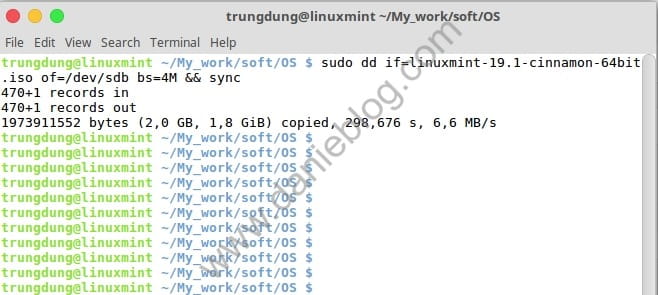
trungdung@linuxmint ~/My_work/soft/OS $ sudo dd if=linuxmint-19.1-cinnamon-64bit.iso of=/dev/sdb bs=4M && sync
470+1 records in
470+1 records out
1973911552 bytes (2,0 GB, 1,8 GiB) copied, 298,676 s, 6,6 MB/s
Only one command and I created USB Boot Linux Mint 19 successfully, I just need to wait about 5 minutes.
Conclusion
With a simple command, we were able to create USB Boot Linux Mint 19.1 quickly. Only about 5 minutes is everything done. On the OS Desktop, GUI software is desirable. But sometimes it doesn’t work, we have to be flexible with the commands.
(This is an article from my old blog that has been inactive for a long time, I don’t want to throw it away so I will keep it and hope it helps someone).

