
Table of Contents
Today, i will guide you how to use zenity to create a list dialog. The list dialog is quite useful, so you can use it to create options in your program. Normally, you will see at programs during installation, they usually give you windows with a list of options. This article will help you use zenity to do that.
Create a list dialog
First, zenity uses the --list option to create a list dialog. However, unlike other options, if you only run command zenity --list, nothing will happen. We are creating a window with the values available for selection, you need to add the value in your command.
You can try running the following command:
zenity --list --column="Column name 1" --column="Column name 2" "Text row 1" "Value row 1" "Text row 2" "Value row 2"
In the above command, you can see the --column option to set the name for the columns in the dialog box, you can create as many columns as you want. In the above command, I created 2 columns. Therefore, each row should have two fields; Here we create each pair is Text row 1 – Value row 1 and Text row 2 – Value row 2. If it is a string then you write it in quotes, and if it is a number then you write normally.
By default, when you select a row in the dialog box, the value in the first column is returned. Here, the value returned is Text row 1 or Text row 2.
List dialog options
The table below lists the options that the --list supports. Note, when you use the --checklist option or the --radiolist option, each line must begin with TRUE or FALSE (this is the value that indicates whether or not the line is selected). And when using these two options, the --editable option does not work.
| Option | Meaning |
--column=column | Set the column headers will display in the list dialog. You can see the example above. As i said, you can create as many columns as you want. |
--checklist | Set the first column in the list dialog contains check boxes. You can see image below this table. |
--radiolist | Set the first column in the list dialog contains radio boxes. You can see image below this table. |
--editable | Allows you to edit values in row in the list dialog. Does not work when you use --checklist or --radiolist. |
--separator=separator | Set what string is used when the list dialog returns the selected entries. Default character is “|“. |
--print-column=column | Default the first column will return value. You can use this option to print out special column or all columns. Value for this options is: 1, 2, … or ALL. |
Okey, now i will create a list dialog with --checklist option.
zenity --list column=Check --column="Column name 1" --column="Column name 2" TRUE "Text row 1" "Value row 1" FALSE "Text row 2" "Value row 2" --checklist
You see the row that starts with TRUE will be selected as soon as the window opens. For checklist, you can select one or more or all rows.
zenity --list column=Check --column="Column name 1" --column="Column name 2" TRUE "Text row 1" "Value row 1" FALSE "Text row 2" "Value row 2" --radiolist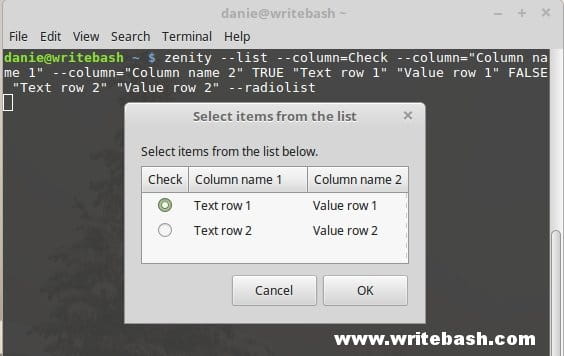
For --radiolist options, you can select only one row in the dialog. You can try the remaining options and see how the results.
Bash script to create a list dialog
Copy below script to your computer and use it in the program as you want.
Read more: Create a form dialog.
#!/bin/bash
# Script author: Danie Pham
# Script site: https://devopslite.com
# Script date: 29-01-2018
# Script use to create a list dialog by using Zenity

# Function create a scale dialog
f_create_list () {
    zenity --list \
    --title="WriteBash.com demo create list dialog" \
    --text="Vote for this post" \
    --column="How useful" --column="Star rating" \
    "Not useful" 1 \
    "A little" 2 \
    "Okey" 3 \
    "Useful" 4 \
    "Very useful" 5
}

# Main function
f_main () {
    f_create_list
}
f_main

exit
Conclusion
This article, I gave quite a good example of the --list option in zenity. With this option, it looks very simple, but it is very powerful. You can use it in many cases.
(This is an article from my old blog that has been inactive for a long time, I don’t want to throw it away so I will keep it and hope it helps someone).

