
Table of Contents
In this article, I will guide you to monitor VMware with Prometheus vmware_exporter.
The use of VMware at companies is quite common. Therefore, monitoring VMware infrastructure is also necessary.
Note: I did it on vCenter, not on an individual host.
First, you need to create a read-only user on vCenter to monitor the system.
Recommended Reading: Create Read-only user in VMware vCenter 6.7
The operating system I use is Ubuntu server 18.04, I installed vmware_exporter on the server running Prometheus.
Install vmware_exporter
To install vmware_exporter you need python3 and pip3. You can check through the command below.
python3 --version
pip3 --verion
If the above 2 commands do not return results, you need to install these 2 packages for the server.
apt install python3 -y
apt install python3-pip -y
Now, run the command below to install vmware_exporter.
pip3 install vmware_exporter
pip3 install --ignore-installed PyYAML
After installation is complete, the directory containing source vmware_exporter is located at /usr/local/lib/python3.6/dist-packages/vmware_exporter.
Next, you need to create a config file for vmware_exporter.
nano /usr/local/lib/python3.6/dist-packages/vmware_exporter/config.ymlThen, copy the content below into the file.
default:
    vsphere_host: vcenter.yourdomain.com
    vsphere_user: '[email protected]'
    vsphere_password: 'usermonitorpass'
    ignore_ssl: True
    specs_size: 5000
    fetch_custom_attributes: True
    fetch_tags: True
    fetch_alarms: True
    collect_only:
        vms: True
        vmguests: True
        datastores: True
        hosts: True
        snapshots: True
You replace the information in the config section above with your actual vCenter information.
Then, you create a systemd service file for vmware_exporter.
nano /etc/systemd/system/vmware_exporter.serviceCopy the content below into the file.
[Unit]
Description=Prometheus VMWare Exporter
Wants=network-online.target
After=network-online.target

[Service]
Type=simple
User=root
Group=root
ExecReload=/bin/kill -HUP $MAINPID
ExecStart=/usr/bin/python3 /usr/local/bin/vmware_exporter -c /usr/local/lib/python3.6/dist-packages/vmware_exporter/config.yml
SyslogIdentifier=vmware_exporter
Restart=always

[Install]
WantedBy=multi-user.target
Reload the daemon and start the service.
systemctl daemon-reload
systemctl enable vmware_exporter.service
systemctl start vmware_exporter.service
Set up Prometheus for vmware_exporter
After you have installed vmware_exporter following the steps above, you need to set up Prometheus to call vmware_exporter’s service port.
nano /etc/prometheus/prometheus.ymlYou add the content below to the file.
  - job_name: 'dc_vcenter'
    scrape_timeout: 1m
    scrape_interval: 2m
    metrics_path: '/metrics'
    static_configs:
      - targets:
        - 'vcenter.yourdomain.com'
    relabel_configs:
      - source_labels: [__address__]
        target_label: __param_target
      - source_labels: [__param_target]
        target_label: instance
      - target_label: __address__
        replacement: localhost:9272
Next, find the following section in the prometheus.yml file and add the rule file for vCenter.
rule_files:
  # - "first_rules.yml"
  # - "second_rules.yml"
    - "/etc/prometheus/rules/vcenter.yml"
At this point, you have not restarted or reloaded the Prometheus service yet. You also need to create a rule file for vCenter.
Set up alertmanager rule for VMware
Recommended Reading: Install Alertmanager and set up Prometheus alerts
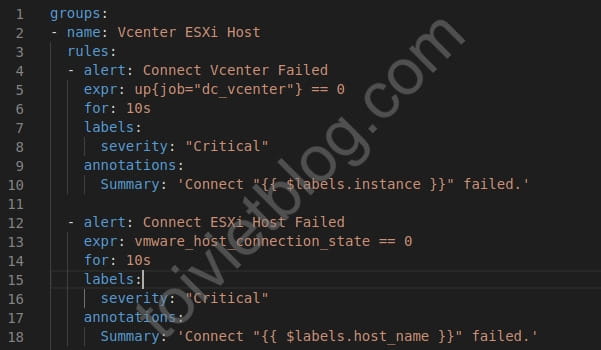
You create a file containing alert rules for vCenter.
nano /etc/prometheus/rules/vcenter.ymlYou copy the content below into the file, I only excerpt the beginning of the file, you can download the full file at this gitlab link.
groups:
- name: Vcenter ESXi Host
  rules:
  - alert: Connect Vcenter Failed
    expr: up{job="dc_vcenter"} == 0
    for: 10s
    labels:
      severity: "Critical"
    annotations:
      Summary: 'Connect "{{ $labels.instance }}" failed.'
Now you reload the Prometheus service and the alertmanager service.
systemctl reload prometheus
systemctl reload alertmanager
Now you can open your browser and visit the Prometheus page to see if vCenter’s target and alert information is available.
Set up Grafana dashboard
Recommended Reading: Install Prometheus and Grafana on Ubuntu 18
The final part is to set up the Grafana interface to monitor VMware.
I have tried a number of dashboards found on Grafana and I see that currently only ID 11243 can be used.
If you want to use a customized version and add some information panels, you can download the json file here.
Please understand that it is not convenient for me to take a screenshot of the dashboard directly, because it contains a lot of sensitive information.
Conclusion
Through this article, I have guided you through all the steps to monitor VMware. Create user monitor on vCenter, install exporter, set up Prometheus, set up alert rules, set up dashboard grafana.

