
Table of Contents
This article will help you understand system directories on Linux systems. This, personally, is very important and especially for those who want to become a system administrator.
There will be times when you install a software on a Linux server and you get an error. What should I do now? You will begin to view configuration files to see if anything is wrong.
But to see where those files are, if you don’t understand Linux’s system directory structure, you’ll have trouble.
List system directories on Linux systems
Now, below, I will give you a list of system directories on Linux.
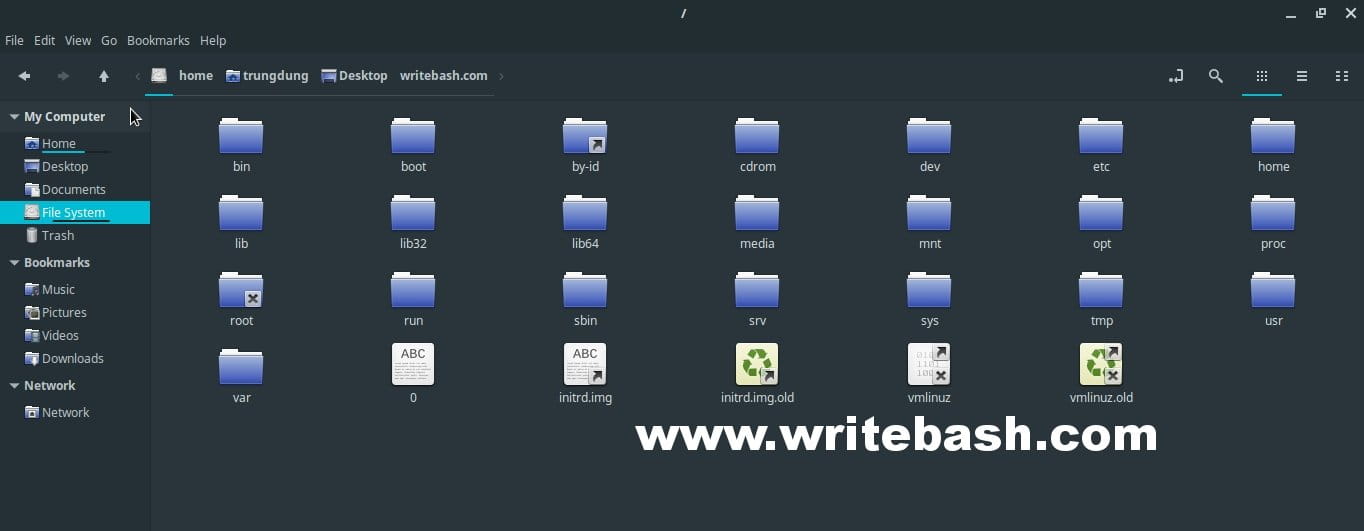
Main directories
| Directory | Comments |
| / | This is the root directory, where all directories or files start on the Linux system. When you understand it’s the root directory, you’ll know why the rm -rf /* command is dangerous and made fun of people who just learned Linux. |
| /bin | Abbreviation for the word binaries. that must be present for the system to boot and run. |
| /boot | Contains the Linux kernel, initial RAM disk image (for drivers needed at boot time), and the boot loader. In some jobs, you may be able to edit the file /boot/grub/grub.conf or /boot/grub/grub.cfg (depending on base OS), which are used to configure the boot loader. |
| /dev | This directory contains information about all device nodes. On Linux, all devices connected to the system are viewed as files and when you work on files, they are also working on the device. You can see the best example with the command fdisk -l. It will list all drives on the machine, you will see some lines like /dev/sda, /dev/sdb, … |
| /etc | /etc is referred to as the etcetera directory. The /etc directory contains all of the system-wide configuration files. It also contains a collection of shell scripts which start each of the system services at boot time. Most of the software you install on the system, there are configuration files located in this directory. Therefore, when an error occurs, search for the configuration file in this first. Some files you will often work in this directory:– /etc/crontab : where you set up automatic scheduling processes for the system. Or you can use the crontab -e command to set.– /etc/fstab : where you set up mount points for storage devices on your system.– /etc/passwd : a list of the user accounts. |
| /lib | Abbreviated for library. The directory contains the shared library files used for the core system. It is similar to DLLs in Windows. |
Home and media directories
| Directory | Comments |
| /home | This is the home directory of regular users on the system. When you create a new user on the system, it will create a corresponding directory in /home and that user can only write and execute the file on their home directory. For example, I have a user named danie, the home directory is /home/danie, respectively. I can only create, edit, delete and execute files/folders on the /home/danie folder. |
| /lost+found | Each partition or storage device when connected to your system will have this folder. This folder is used to recover a piece of data if there is a problem corrupt file system. However, most of the time, this directory will be empty. |
| /media | On modern Linux systems, the folder contains mount points for removable devices such as USB, CD-ROM, … |
| /mnt | On older Linux systems, /mnt used to store mount points for removable devices. |
System information and options
| Directory | Comments |
| /opt | This directory is used to install optional software. Later, when you install some software such as Zimbra, Mod Security, … then you will see these software will be in the /opt directory. |
| /proc | This is a special folder. It contains files but not really file systems. These files are generated by the kernel and are maintained in the kernel itself. These virtual files display information about your system, which shows the kernel how to identify your system. For example, you want to know how many processors the system has. You type the following command to try it cat /proc/cpuinfo | grep processor. |
| /root | This is the home directory for the root account. |
| /sbin | This directory contains the system binaries files used to perform general system tasks, most of which serve superusers. |
| /tmp | The directory contains temporary files of programs on the system. This folder can be emptied every time the system reboots. |
Unix system resources and logs
| Directory | Comments |
| /usr | Some people say /usr means user, others say /usr means Unix System Resources. You can read more at the FreeBSD documentation about these directories, but I personally think that /usr is more suitable for Unix System Resources. This directory contains all the programs and support files used by regular users. |
| /usr/bin | This directory contains the executable programs installed by Linux distribution. If your read the post about script file location, you will see that I mentioned this folder and what the system will do with the files in this directory. |
| /usr/lib | It contains all shared libraries for the programs in /usr/bin. |
| /usr/local | This directory does not contain the default operating system programs, but it contains programs compiled from the source and placed in the directory /user/local/bin. Most of these programs are installed and used by users throughout the system. |
| /usr/sbin | Contains system administration programs. |
| /usr/share | This directory contains all the shared data used by programs in /usr/bin. It’s may include something like example configuration files, document files, … |
| /usr/share/doc | When you install the software, these software packages will include the documentation that comes with it. Of course, you can read it on the homepage. But these packages will by default place their respective documents in this directory. |
| /var | This directory is the location of the changed data of the system or the user. For example: PID files, various databases, user mail, … |
| /var/log | This directory contains system log files, program log files. If you want to troubleshot certain problems, see log in this directory. |
Conclusion
Okey, so you have a fairly general overview of the system directory tree structure in Linux systems. Now, practice and learn more about it.
(This is an article from my old blog that has been inactive for a long time, I don’t want to throw it away so I will keep it and hope it helps someone).

