
Table of Contents
This article will guide you to install Gitlab CE on Ubuntu 18.04.
If you work in the field of information technology (especially a dev), Gitlab is probably not strange to you.
However, in addition to using the free service that Gitlab provides through the website gitlab.com. You can install your own internal Gitlab server using Gitlab CE.
Prepare the server
The purpose of installing Gitlab CE is that you want to use the system privately or internally within your company/organization.
Therefore, first you need to prepare a server or a VPS.
- OS: Ubuntu 18.04 64bit
- CPU: minimum 4 cpu
- RAM: minimum 4 GB
- HDD: minimum 50 GB
- User: root (or sudo)
You can see more hardware recommendations from Gitlab. According to my experience, you should increase the configuration to 1.5-2 times the recommended level.
Because, if you use CI or allow uploading/downloading large files, it will consume a lot of RAM.
Install Gitlab CE on Ubuntu 18.04
Now, we start installing the software.
Step 1: update OS and install support packages.
# Switch to root
sudo su

apt update
apt install ca-certificates curl openssh-server -y
Step 2: add repo and install gitlab ce package.
cd /tmp
curl -LO https://packages.gitlab.com/install/repositories/gitlab/gitlab-ce/script.deb.sh
bash /tmp/script.deb.sh
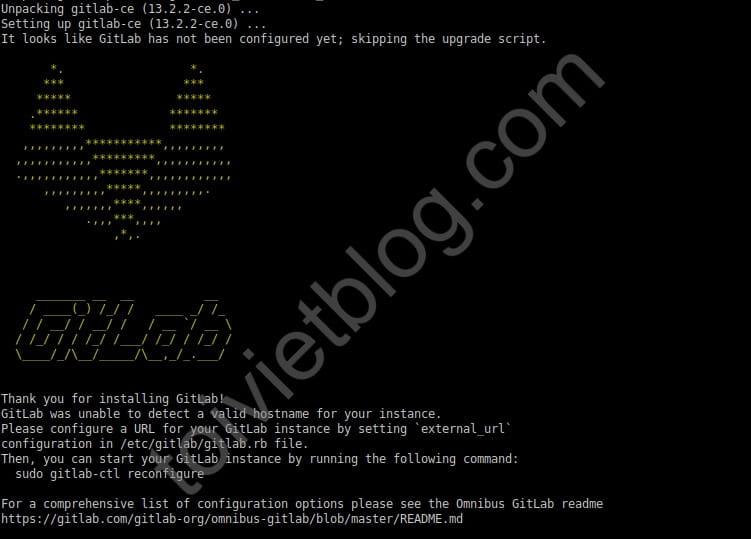
apt install gitlab-ce
rm -f script.deb.sh
Now we will create an ssl certificate so we can run https. If you use Let’s Encrypt then you can replace the ssl certificate generated in this step.
Step 3: create ssl certificate to use for gitlab.
openssl req -x509 -nodes -days 3650 -newkey rsa:2048 -keyout /etc/ssl/private/gitlab.key -out /etc/ssl/certs/gitlab.crt
openssl dhparam -out /etc/ssl/certs/dhparam.pem 2048
In this step, we will create an SSL key pair named gitlab.key and gitlab.crt.
Step 4: set up configurations for gitlab.
Open the file /etc/gitlab/gitlab.rb.
Edit the lines to the following content, the content after the # sign is a comment for the line.
external_url 'https://gitlab.yourdomain.com'                    # The domain name you use to run the gitlab system
gitlab_rails['time_zone'] = 'Asia/Ho_Chi_Minh'                  # Set time zone
gitlab_rails['gitlab_default_can_create_group'] = false         # Do not allow users to create group repository
gitlab_rails['gitlab_username_changing_enabled'] = false        # Do not allow users to change usernames
gitlab_rails['trusted_proxies'] = ['192.168.100.3']             # Declare reverse proxy address (if any)
nginx['redirect_http_to_https'] = true                          # Redirect request to https
nginx['ssl_certificate'] = "/etc/ssl/certs/gitlab.crt"          # Path to ssl cert file (or Let's Encrypt cert file)
nginx['ssl_certificate_key'] = "/etc/ssl/private/gitlab.key"    # Path to private key file (or Let's Encrypt key file)
nginx['ssl_dhparam'] = "/etc/ssl/certs/dhparam.pem"             # Path to the previously created dhparam.pem file
Then you save the file.
Step 5: reconfigure gitlab.
You run the command below to apply the above settings to the system.
gitlab-ctl reconfigureOpen the port on the firewall
By default, Ubuntu 18 has ACCEPT all connect ports, so if you use any firewall software on the server such as: iptables, ufw, firewalld…
Then you need to open the following ports on the server to be able to access the system.
- 22: ssh port
- 80, 443: web ports
Login the system
After installing and setting everything up. Now, you can access https://gitlab.yourdomain.com.
The first time you access, the system will ask you to set a new password for the root user (this is the administrator user).
Conclusion
At this point, you have basically completed installing Gitlab CE software on the Ubuntu 18.04 server. In the next articles, I will guide you through some other important settings that you need to do for your gitlab system.

