
Table of Contents
This article will show you how to install Packet Tracer in Linux Mint 18.3.
Everyone knows Packet Tracer is a software emulator to practice configuring Cisco devices.
Register and download Packet Tracer
Packet Tracer is a product of NetAcad, you need to register an account on their system to be able to download the software for free.
You sign up for an account here.
After confirming the email, you login to the NetAcad website.
Select Resources menu -> Download Packet Tracer.
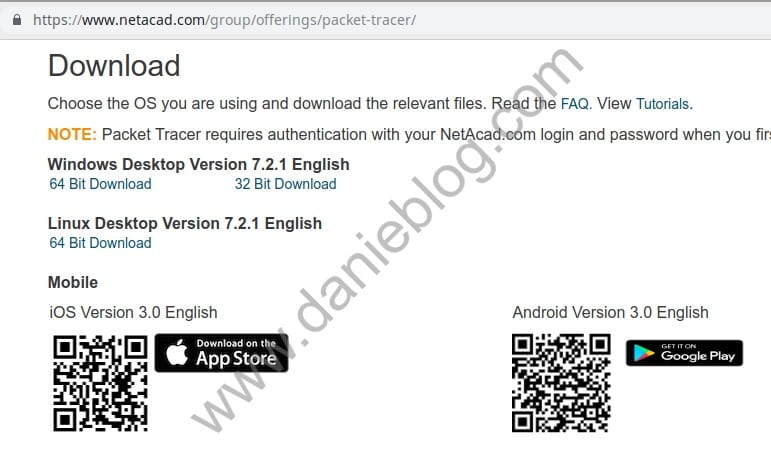
You click to download the version for Linux Desktop Version 7.2.1 English.
Install Packet Tracer in Linux
After downloading the software to your computer, we will now install it.
First, unzip the installation file. For example, I unzip it into the Download folder in my computer.
After that, you move into the Packet Tracer extract folder.
And you type the command below to install it.
danie@linuxmint ~/Downloads/PacketTracer $ sudo ./install
[sudo] password for danie:

Welcome to Cisco Packet Tracer 7.2.1 Installation

Read the following End User License Agreement "EULA" carefully. You must accept the terms of this EULA to install and use Cisco Packet Tracer.
Press the Enter key to read the EULA.


                           Cisco Packet Tracer
                        Software License Agreement
You will see the message in the terminal window like above.
Next, press Y to accept the terms. The rest, you just need to default and press Enter.
Do you accept the terms of the EULA? (Y)es/(N)o

Y
You have accepted the terms to the EULA. Congratulations. Packet Tracer will now be installed.
Enter location to install Cisco Packet Tracer or press enter for default [/opt/pt]:
Installing into /opt/pt
Copied all files successfully to /opt/pt


Should we create a symbolic link "packettracer" in /usr/local/bin for easy Cisco Packet Tracer startup? [Yn] y
Type "packettracer" in a terminal to start Cisco Packet Tracer
Writing PT7HOME environment variable to /etc/profile

Cisco Packet Tracer 7.2.1 installed successfully
So you have successfully installed Cisco Packet Tracer.
Add Packet Tracer to the Mint menu
We are using Linux Desktop and so we want to have a menu to conveniently open Packet Tracer.
Recommended Reading: How to add a menu item in Linux Mint
You add an item to the menu as image below.

I select the menu item is Education.
The information of this item is:
- Name: Packet Tracer
- Command: packettracer
- Comment: Cisco Packet Tracer
- Launch in Terminal: do not choose.
- Icon: /opt/pt/art/app.png
Everything is complete, now you can open the menu and launch Packet Tracer. There is one inconvenient thing, since version 7, Packet Tracer always requires you to login every time you use the software.
Conclusion
The article fully guides each step from downloading software, installing, setting menu items to launch the software more conveniently.
Please experience that software on Linux to see if it is different from the time in Windows, I’m sure not much different.
(This is an article from my old blog that has been inactive for a long time, I don’t want to throw it away so I will keep it and hope it helps someone).

