
Table of Contents
Creating a GitHub repository is an essential step in managing and sharing your code. Whether you are a beginner or an experienced developer, knowing how to create a GitHub repository and clone it to your local machine is crucial. In this guide, we will walk you through the entire process of setting up a new repository on GitHub and cloning it to your computer using the git clone command. By the end of this article, you’ll have a clear understanding of how to create GitHub repository and seamlessly integrate it into your local development environment.
Understanding GitHub and its importance
GitHub is a web-based platform that uses Git, a version control system, to manage and store code. It allows developers to collaborate on projects, track changes, and revert to previous versions of their code when necessary. Creating a GitHub repository is the first step in harnessing the power of this platform, as it provides a central location where your project’s codebase can be stored and managed.
Step 1: Sign up for GitHub
If you haven’t already, the first thing you need to do is sign up for a GitHub account. Visit the GitHub website and click on the “Sign up” button. Follow the on-screen instructions to create your account. Once you have an account, you can proceed to create a GitHub repository.
Step 2: Create a new GitHub repository
Creating a GitHub repository is a straightforward process. Follow these steps to create a new repository:

- Log in to GitHub: Log in to your GitHub account using your credentials.
- Click on the “+” icon: In the top-right corner of the GitHub dashboard, click on the “+” icon and select “New repository.”
- Name your repository: In the “Repository name” field, enter a unique name for your repository. The name should be descriptive and reflect the purpose of the project.
- Add a description: While optional, it’s a good practice to add a description that briefly explains what the repository is about.
- Choose visibility: Decide whether your repository will be public (accessible to everyone) or private (accessible only to you and collaborators).
- Initialize with a README: It’s recommended to check the option “Initialize this repository with a README.” This file provides an overview of your project and is the first thing people see when they visit your repository.
- Add .gitignore and license: If you’re working with a specific programming language, you may want to add a
.gitignorefile that specifies which files and directories should be ignored by Git. Additionally, you can choose a license for your project. - Click “Create repository”: Once you’ve filled in the necessary details, click on the “Create repository” button.

Congratulations! You’ve just created your first GitHub repository.
Step 3: Clone the repository to your local machine
Now that you have created a GitHub repository, the next step is to clone it to your local machine. Cloning a repository means creating a local copy of the codebase on your computer. This allows you to work on the project offline and push changes back to GitHub when you’re ready.
Follow these steps to clone a GitHub repository:

- Navigate to the repository page: Go to the main page of the repository you want to clone.
- Click on the “Code” button: On the repository page, you’ll see a green “Code” button. Click on it to reveal the cloning options.
- Copy the repository URL: Under the “Clone” tab, you’ll see the repository URL. Copy this URL to your clipboard.
- Open your terminal: On your local machine, open the terminal or command prompt.
- Navigate to your desired directory: Use the
cdcommand to navigate to the directory where you want to clone the repository. - Run the git clone command: In the terminal, type the following command, replacing
REPOSITORY_URLwith the URL you copied:

git clone to clone the GitHub repository to your computer.git clone REPOSITORY_URL- Press Enter: The cloning process will begin, and a copy of the repository will be created in the specified directory.
You now have a local copy of your GitHub repository, ready for development.
Step 4: Making changes and pushing them to GitHub
Once you have cloned the repository to your local machine, you can start making changes to the code. Here’s how you can push your changes back to GitHub:
- Make changes: Use your preferred text editor or IDE to make changes to the files in your local repository.
- Stage your changes: After making changes, open your terminal and navigate to the repository’s directory. Use the following command to stage the changes:
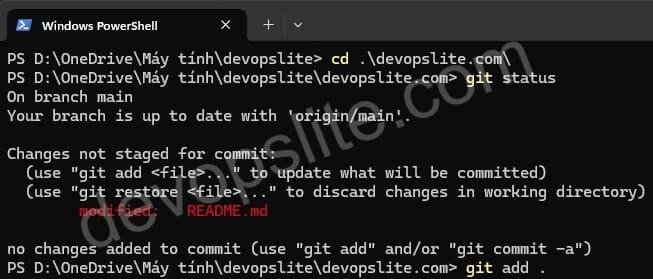
git status command to see what has changed.git add .- Commit your changes: After staging the changes, commit them with a message describing what you did:
git commit -m "Your commit message"
If you encounter the above error when typing the git commit command, this is because you have not set up a username and email for Git. Please refer to the article Configure Git: username, email, and essential settings
- Push to GitHub: Finally, push your changes to the remote repository on GitHub using the following command:
git push origin mainReplace main with the branch name if you’re working on a different branch.

Your changes are now live on GitHub, and anyone with access to the repository can view or collaborate on them.

Step 5: Collaborating with others
One of the main advantages of using GitHub is its collaborative features. You can invite others to contribute to your project by adding them as collaborators. Here’s how:
- Go to the repository page: Navigate to the repository where you want to add collaborators.
- Click on the “Settings” tab: On the repository page, click on the “Settings” tab.
- Select “Manage access”: Under the “Access” section, click on “Manage access.”
- Invite collaborators: Click on “Invite a collaborator” and enter the GitHub username or email of the person you want to invite.
- Set permissions: Choose the appropriate level of access (e.g., read, write, or admin) for your collaborator.

Your collaborator will receive an invitation to join the repository and can start contributing once they accept.
Step 6: Managing issues and pull requests
As your project grows, you may need to manage issues and pull requests. GitHub provides powerful tools for tracking bugs, feature requests, and code changes. Here’s a quick overview:
- Creating issues: Navigate to the “Issues” tab of your repository and click “New issue.” Provide a title and description for the issue, and assign it to a collaborator if necessary.
- Creating pull requests: When you or a collaborator make changes in a separate branch, you can create a pull request to merge those changes into the main branch. Go to the “Pull requests” tab and click “New pull request.” Review the changes and merge them if everything looks good.

Managing issues and pull requests is essential for maintaining the quality and stability of your project.
Conclusion
Creating a GitHub repository and cloning it to your local machine is a fundamental skill for any developer. Whether you’re working on a personal project or collaborating with others, GitHub provides a powerful platform for version control and project management. By following the steps outlined in this guide, you can create a GitHub repository, clone it to your local machine, and start contributing to the open-source community. Remember to use the git clone command whenever you need to create a local copy of a repository, and don’t forget to push your changes back to GitHub to keep your codebase up to date.

